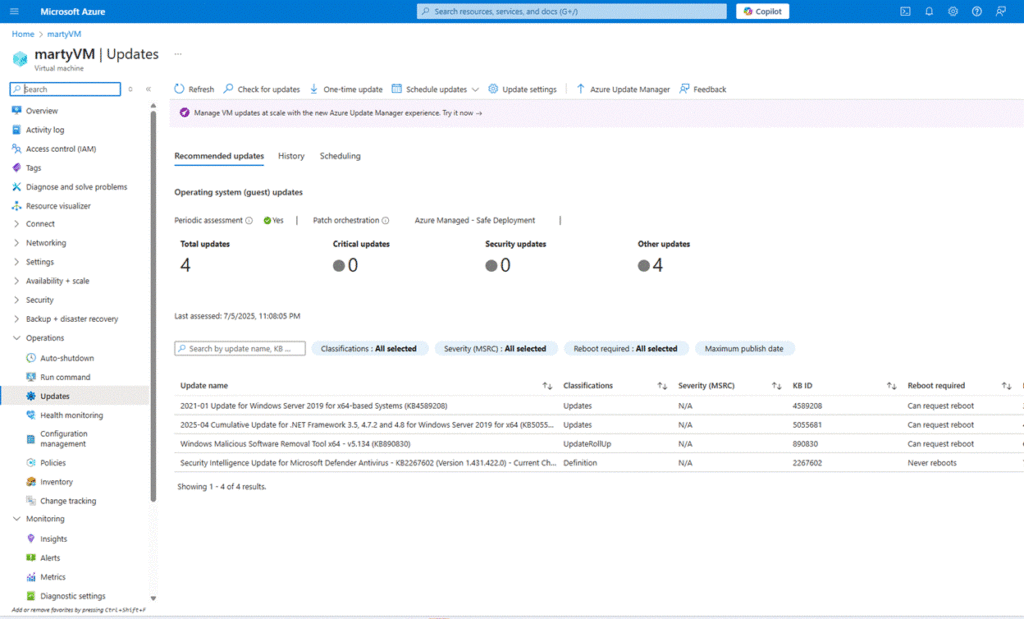
Steps for Set Up a New Azure VM for Automatic Patching and Updates
Below are the steps for manually creating a new Azure Virtual Machine and enabling automatic patching and updates.
1. Open Azure Portal and start resource creation
Go to the Azure Portal, click “Create a resource”, and search for “Virtual Machine”.
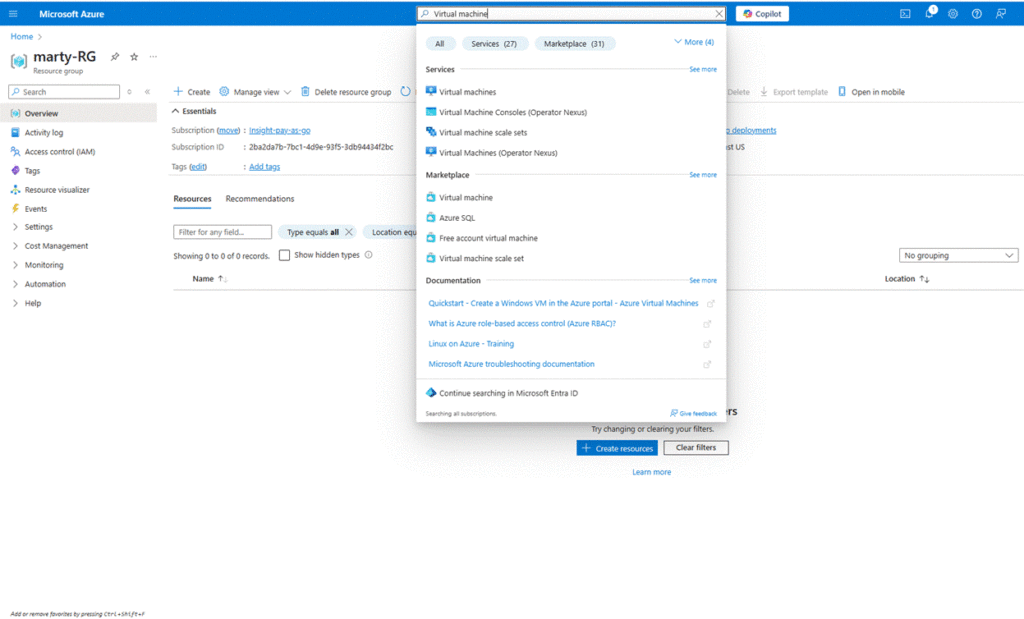
2. Select Virtual Machine and begin setup
Click on “Virtual Machine” from the search results, then click the “Create” button.
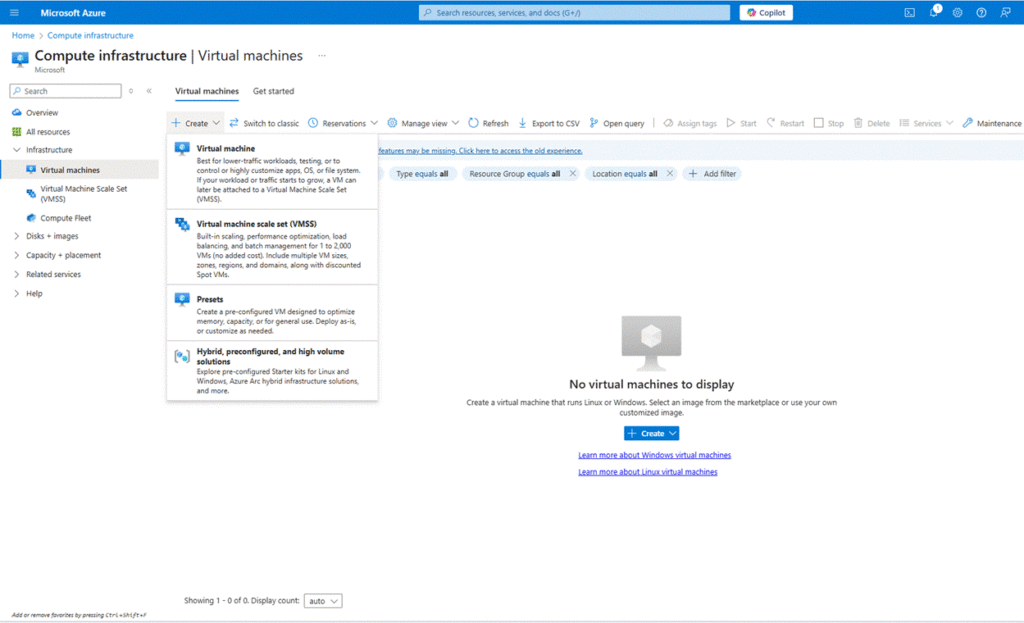
3. Fill in the basic configuration
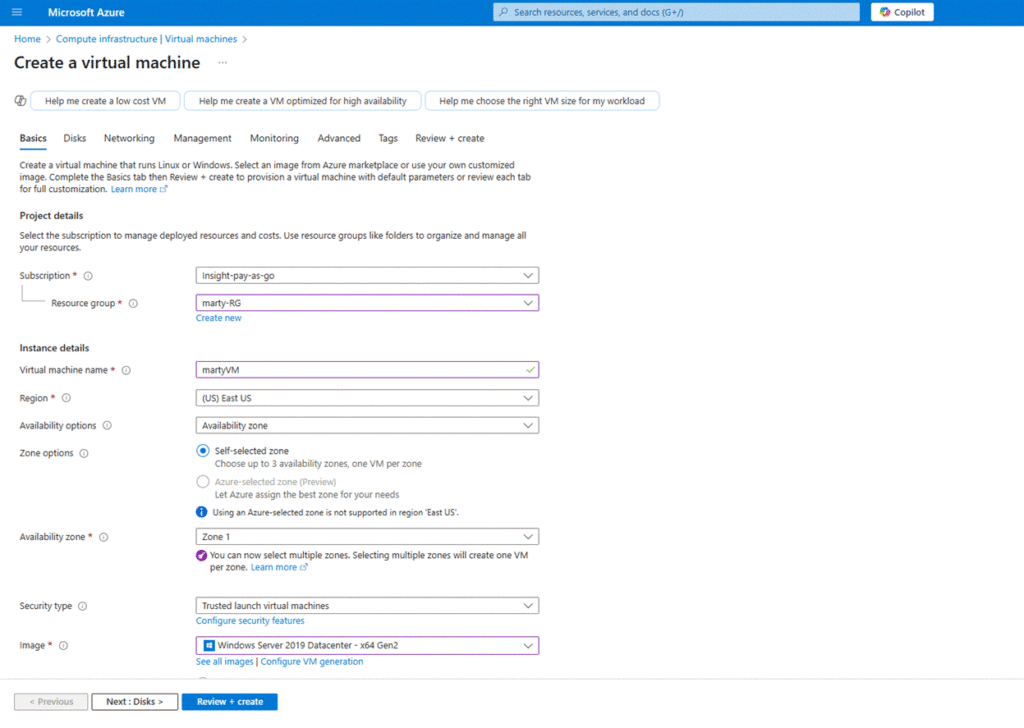
On the “Basics” tab:
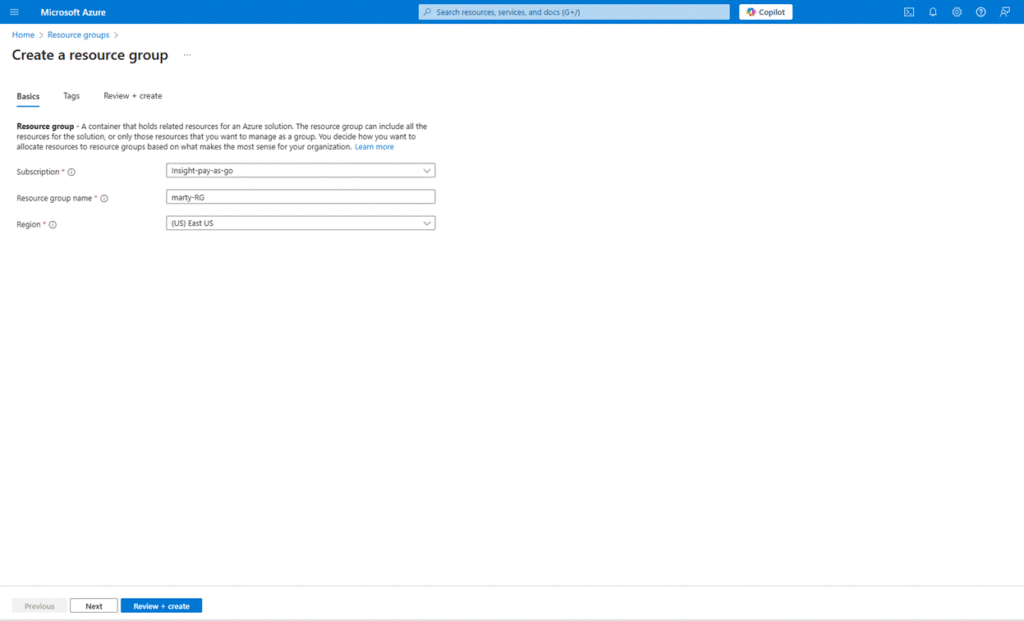
- Select your subscription and resource group (or create one).
- Enter the virtual machine name, for example: martyvm.
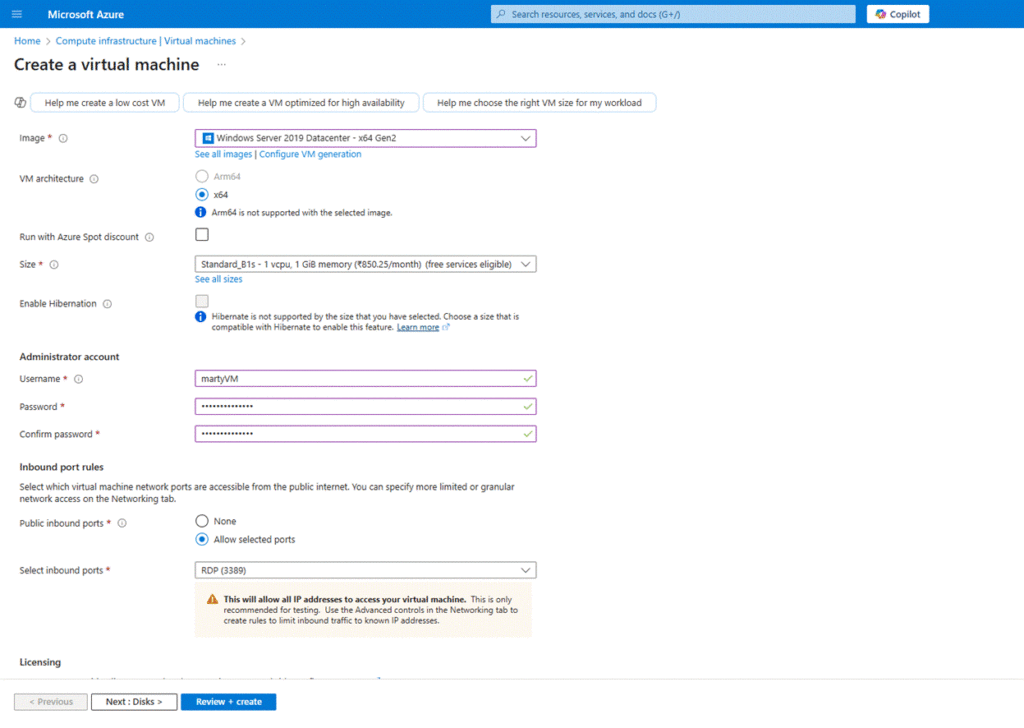
- Choose a region, image (e.g., Windows Server 2019), size, and admin username/password.
- Keep the rest of the defaults unless otherwise required.
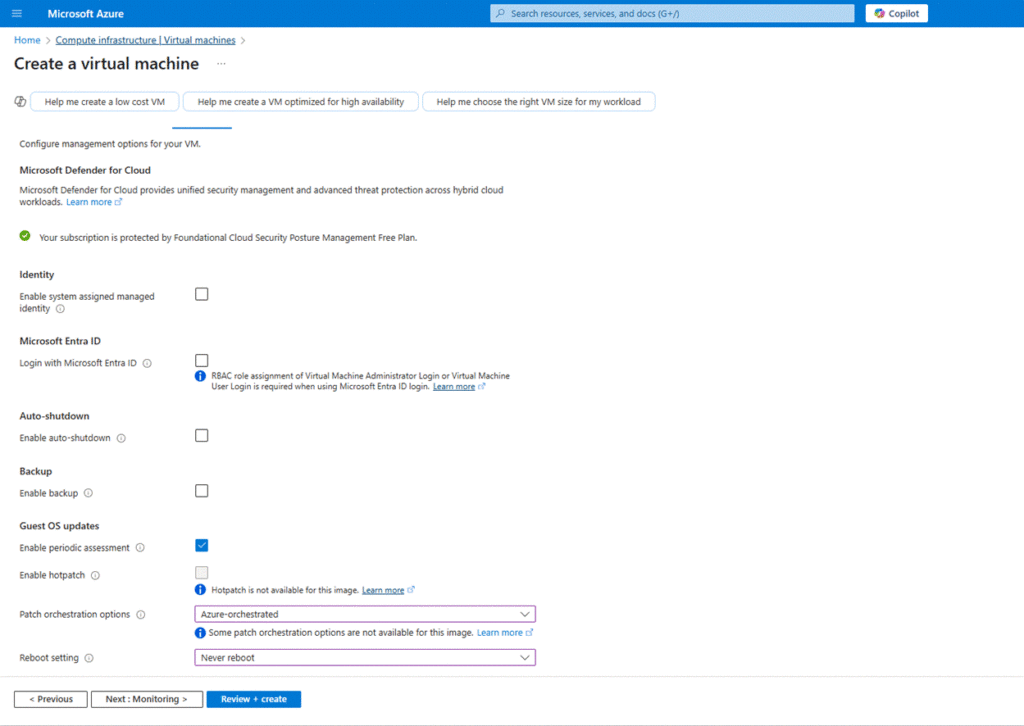
4. Configure automatic patching (Management tab)
Go to the “Management” tab.
- Under “Guest OS updates”, enable “Enable patch orchestration”.
- Select “Azure-orchestrated” or “Image default” as needed.
- Optionally, enable Automatic OS image upgrade.
5. Review and create
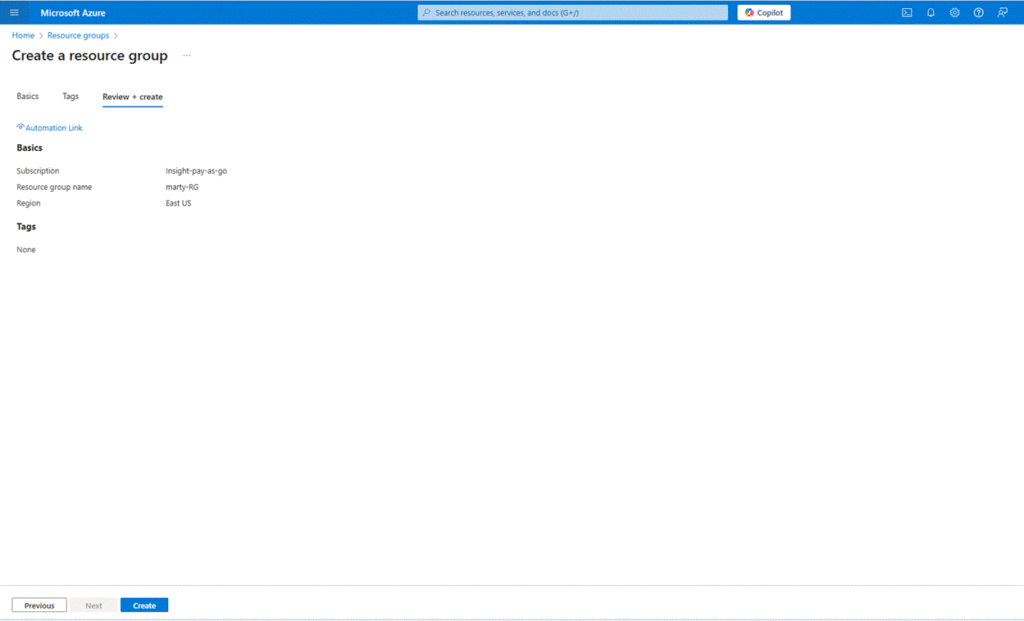
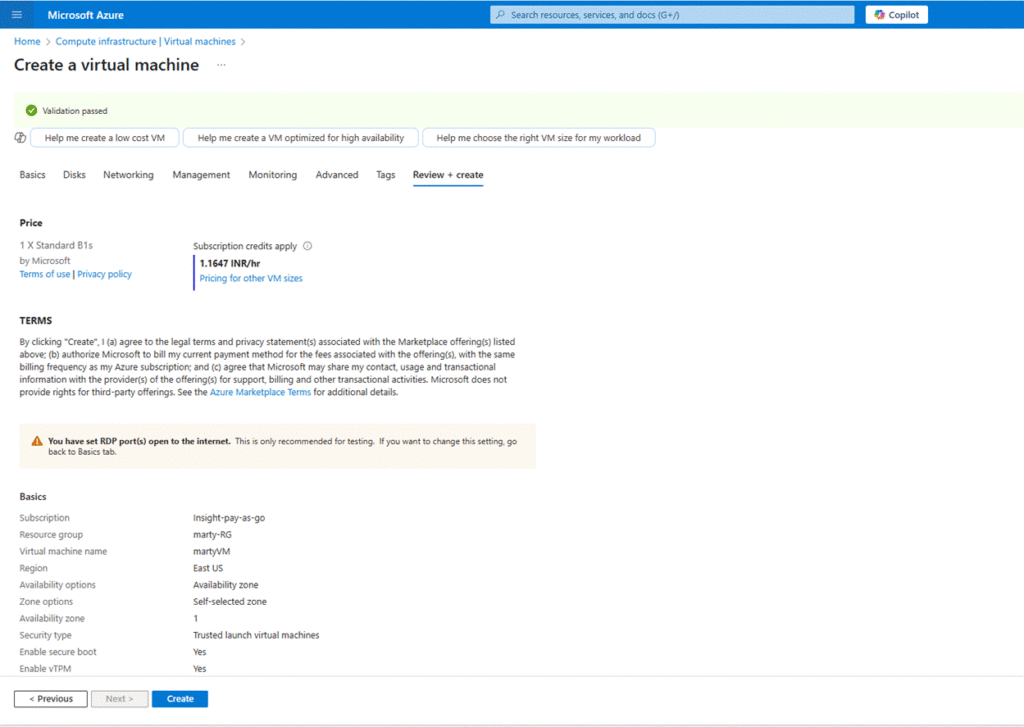
Click on the “Review + create” tab.
- Ensure all validations pass.
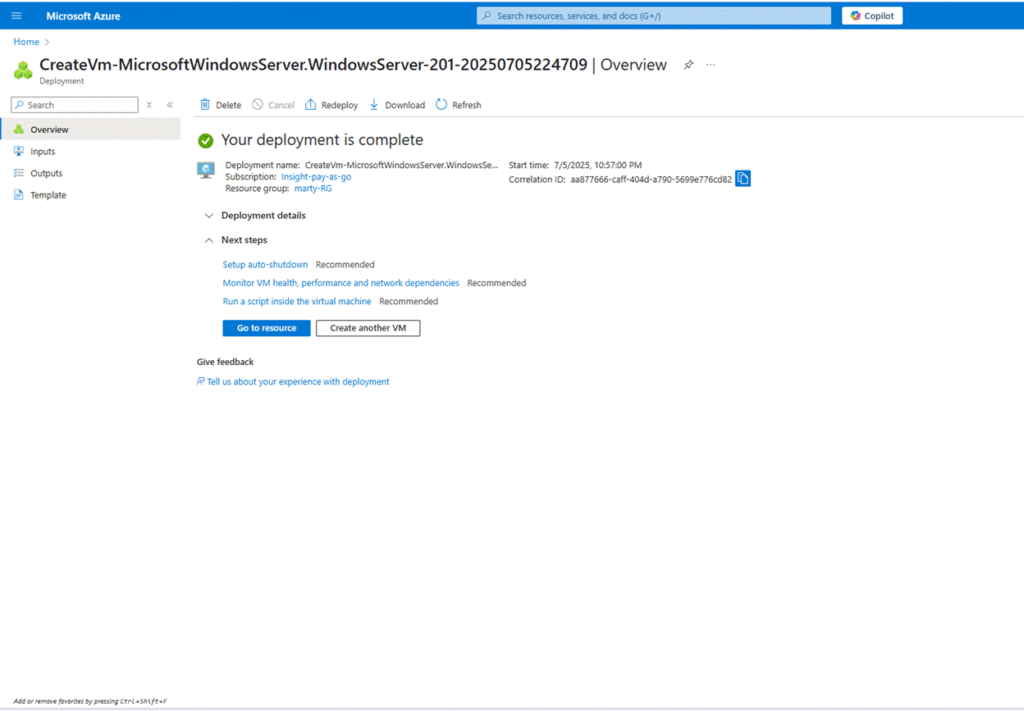
- Click “Create” to deploy the VM.
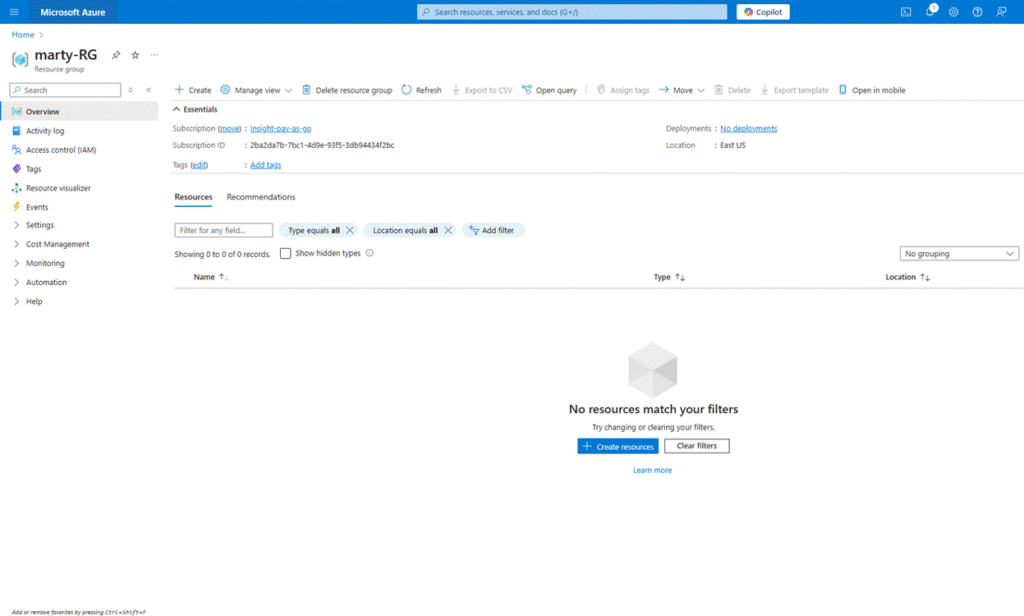
Capture a screenshot of the final confirmation.
6. Access Update Management (Post-deployment)
After deployment:
- Go to the new VM’s overview page.
- In the left-hand Operation menu, select “Update”.