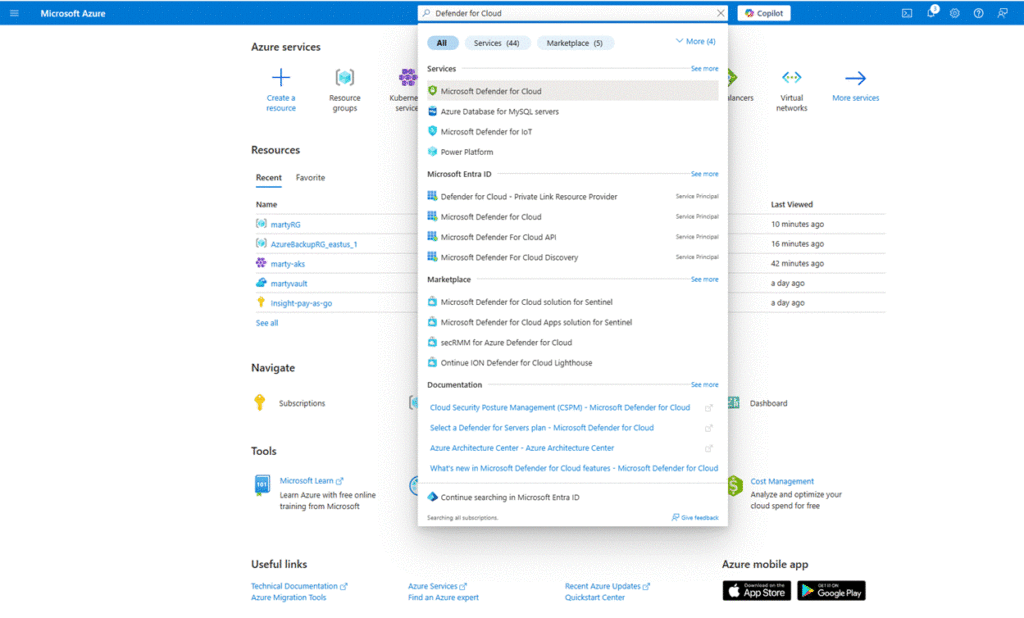
- Open Azure Portal and Search for Defender for Cloud
- Go to Azure Portal
- In the top search bar, type “Defender for Cloud” and select it
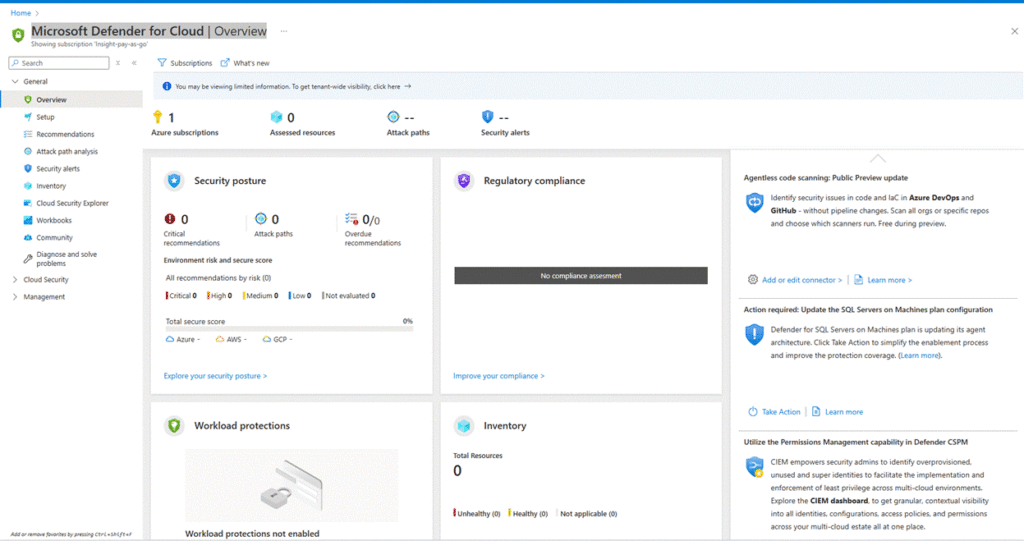
- You will be taken to the Defender for Cloud Overview page
2. Enable Microsoft Defender Plans (If Not Already Enabled)
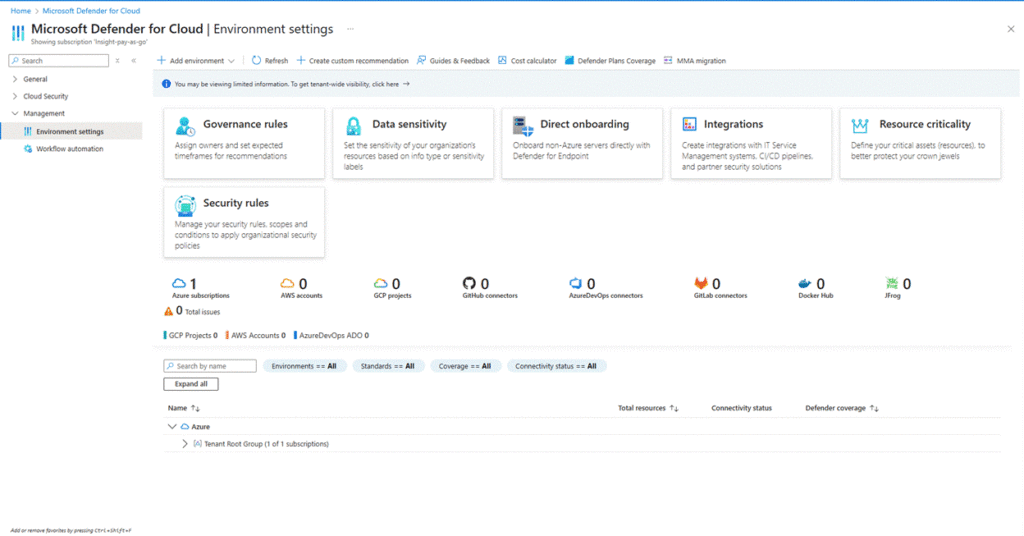
- In the Management section (left panel), click “Environment settings”
- Select the subscription you want to protect
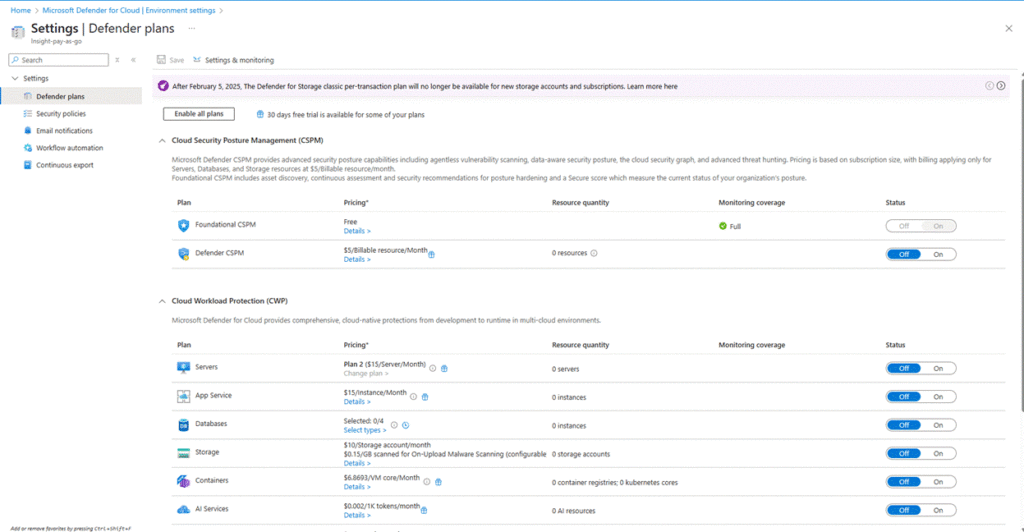
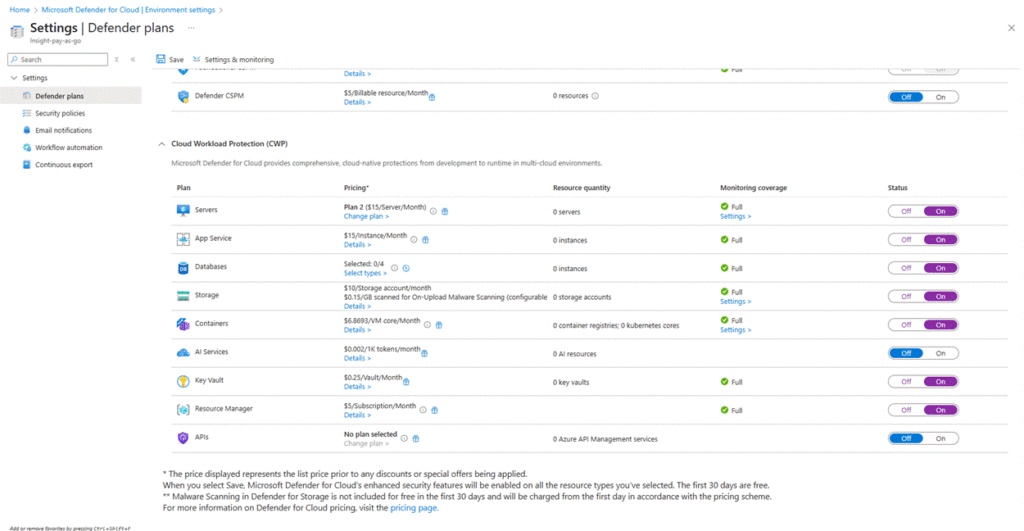
- Under Microsoft Defender plans, click “Enable all” or selectively enable services:
- Defender for Servers
- Defender for App Services
- Defender for Key Vaults
- Defender for Storage, etc.
- Defender for Servers
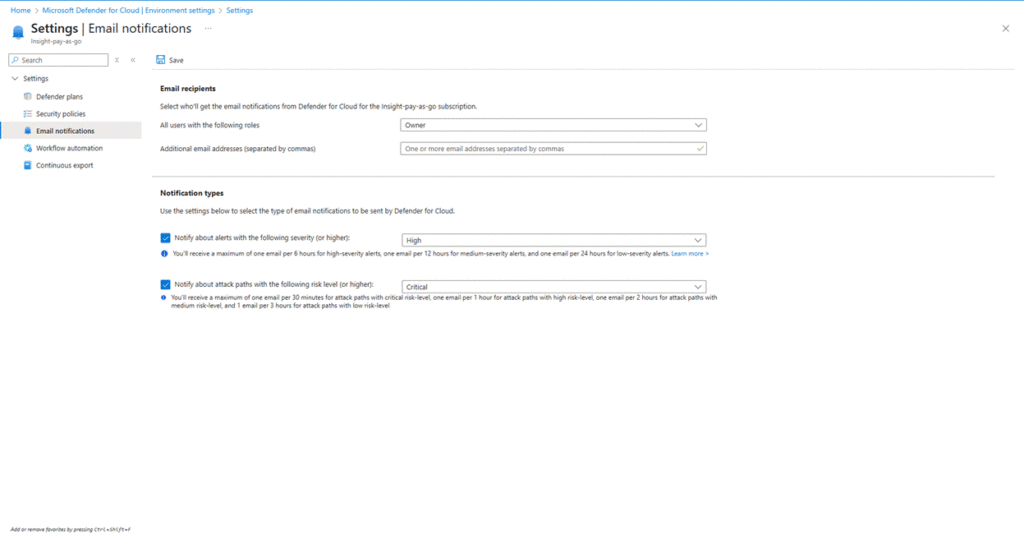
3. Set Up Email Notifications for Alerts
- Click on Email notifications, and add recipients for security alert emails
- Optionally, enable Send email to subscription owners
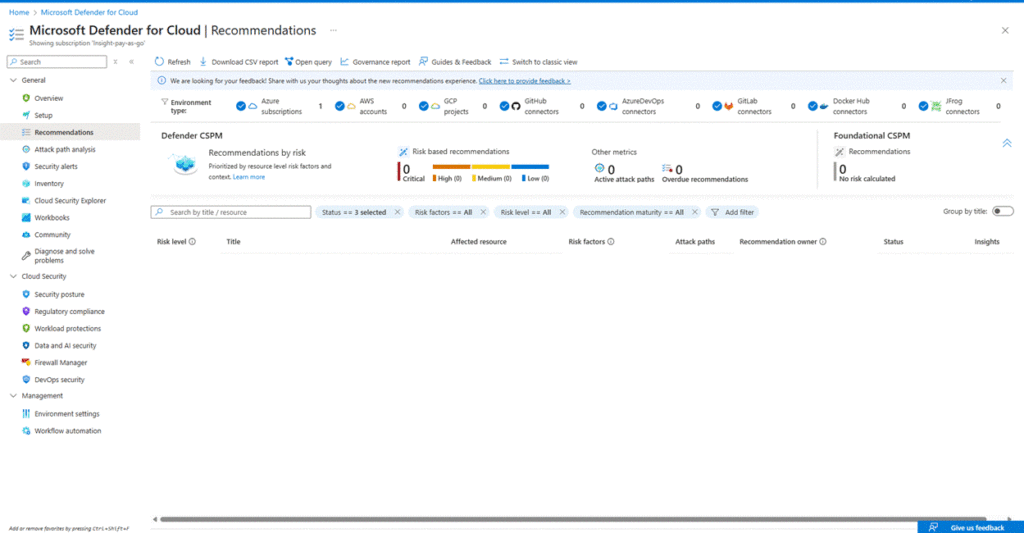
4. View Security Recommendations
- Go back to Defender for Cloud → Recommendations
- You’ll see recommendations grouped by severity (High, Medium, Low)
- These will guide you in improving your security posture
5. View Secure Score Dashboard
- From the sidebar, click Secure Score
- This gives a visual representation of your security posture and how to improve it
- Track your score as you implement recommended actions