Step 1: Setting Up On-Premises Active Directory
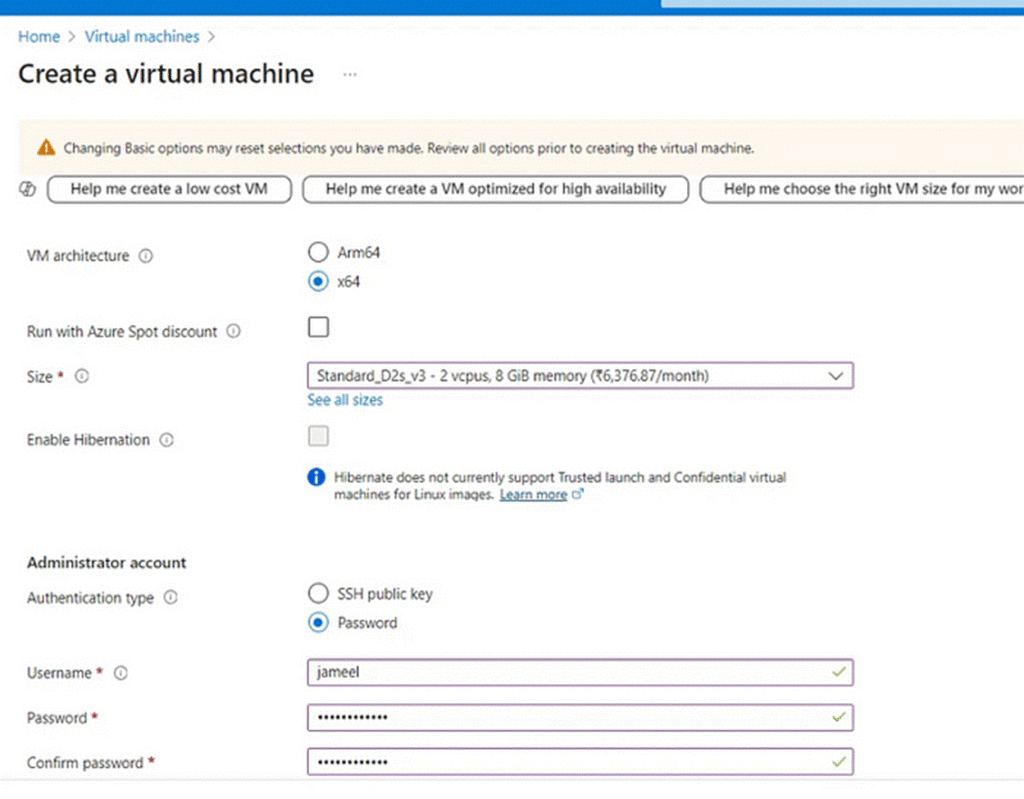
- Create a virtual machine (VM) for your on-premises AD: WindowsServer22 , And specific Size
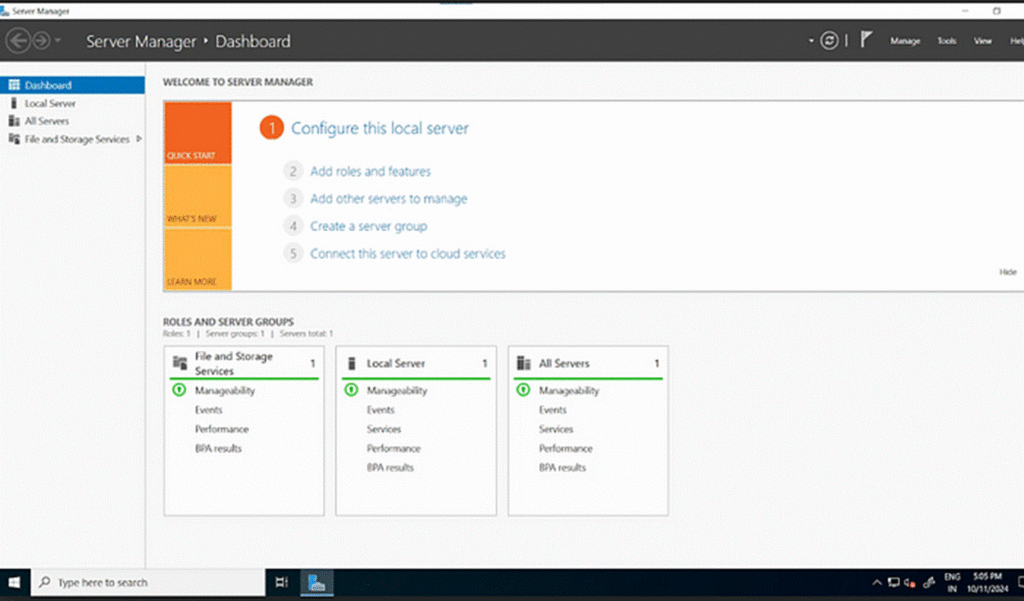
2. Connect to the VM using RDP and open Server Manager.
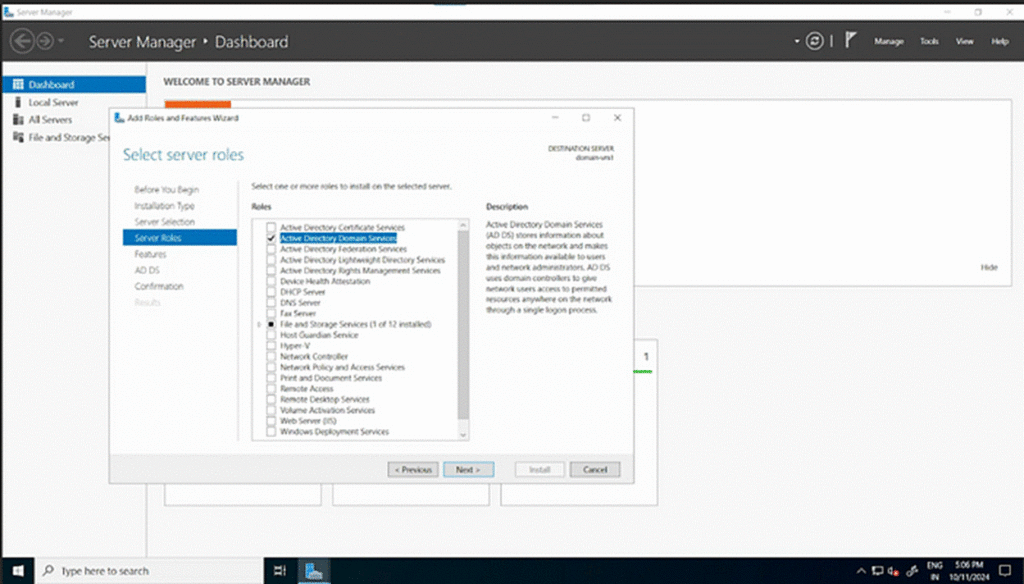
3. Add the Active Directory Domain Services (AD DS) role:
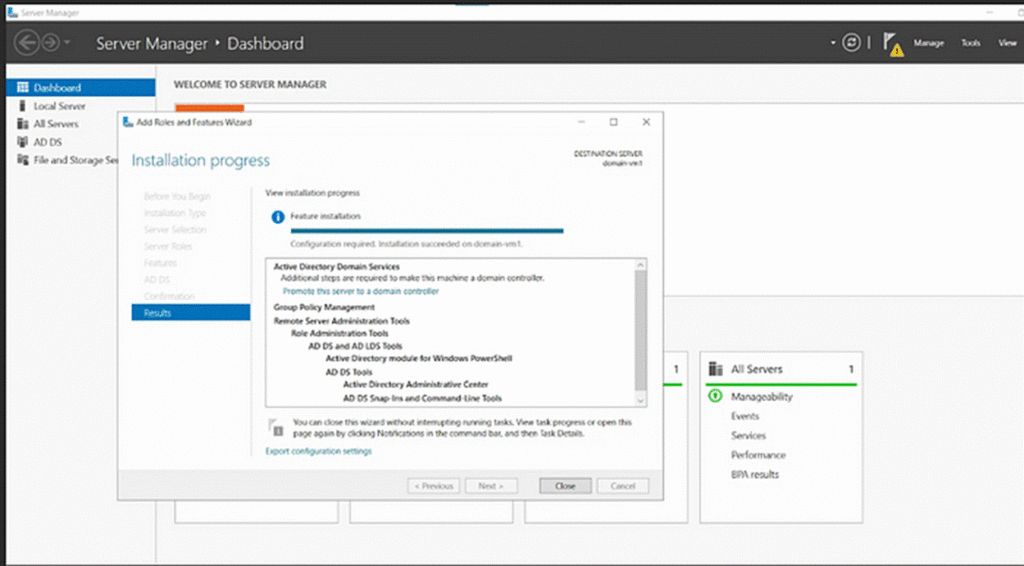
4. Promote the server to a domain controller and set up your forest and domain.
In Server Manager, go to Local Server, then click on “Workgroup”. Select “Change”, then click on “Domain” and enter your domain
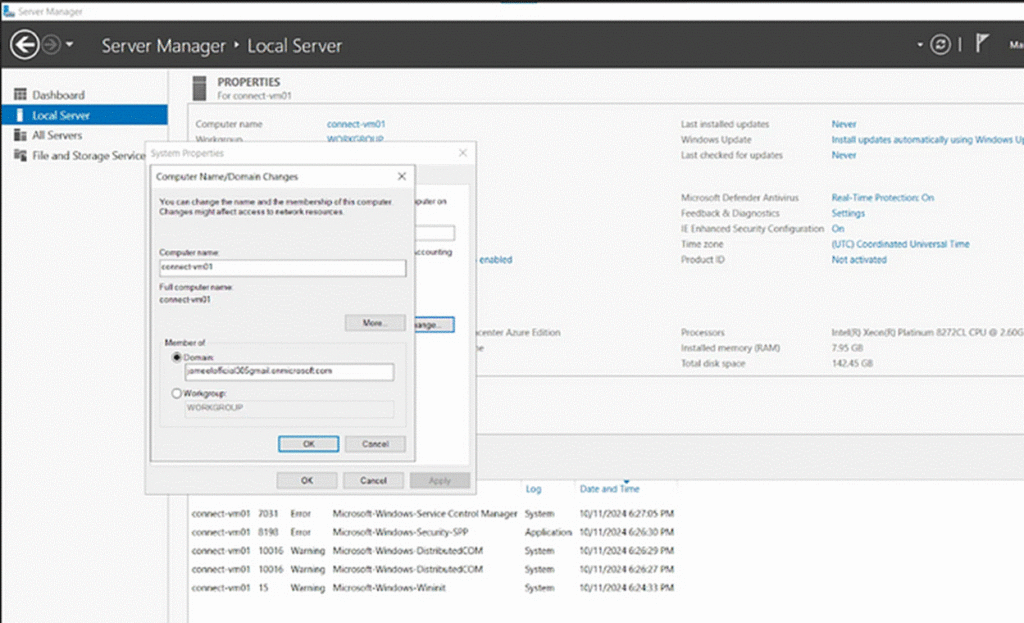
next will ask password and provide the domain password — give the credentials of domainvm1
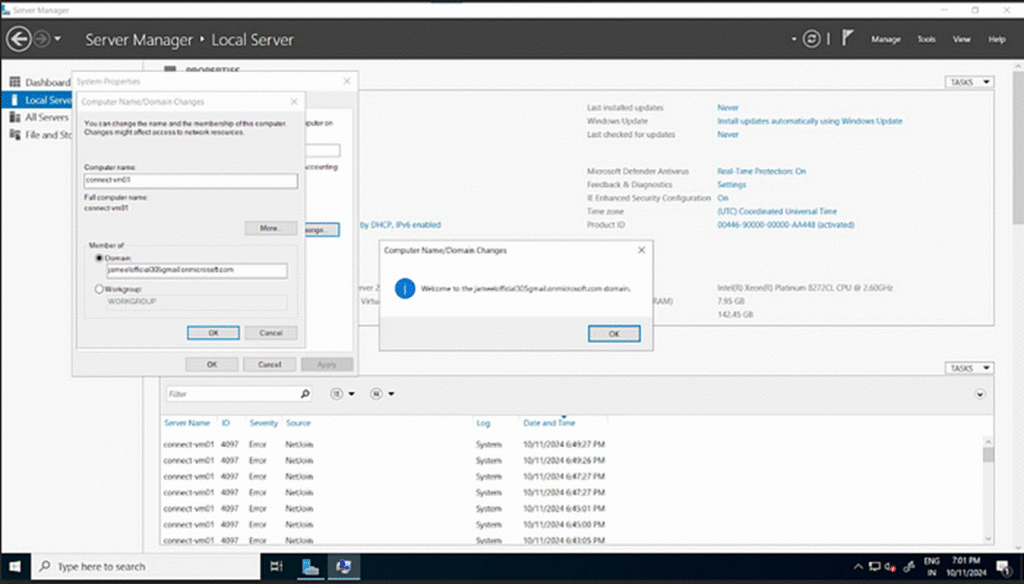
restart the machine
5. Create test users in your on-premises AD.
Step 2: Configuring DNS for Hybrid Connectivity
- Note the private IP address of your domain controller VM.
- In the Azure portal, go to your virtual network’s DNS settings and add the domain controller’s IP as a custom DNS server.
- Restart the domain controller VM to apply changes.
Step 3: Setting Up Azure AD Connect
To set up Azure AD Connect and synchronize your on-premises Active Directory with Microsoft Entra ID, follow these steps:
- Create another virtual machine for Azure AD Connect:
- Name it “connect-vm01”
- Ensure it has sufficient resources to run Azure AD Connect
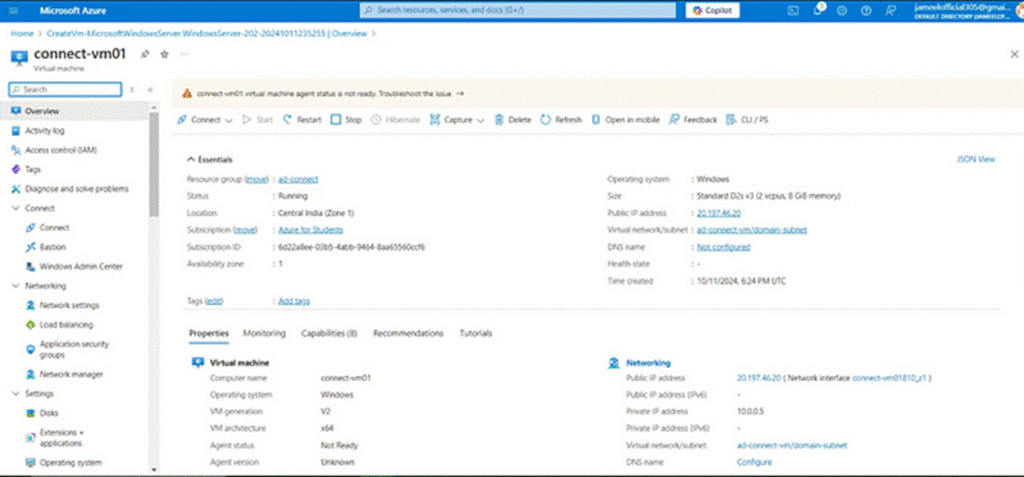
2. Connect to the new VM using Remote Desktop Protocol (RDP)
3. Join the VM to your on-premises domain:
- In Server Manager, go to Local Server
- Click on “Workgroup”, then select “Change”
- Click on “Domain” and enter your domain name
Provide the domain credentials:
- When prompted, enter the password for the domain administrator account (from domainvm1)
- Restart the machine to apply the domain join changes
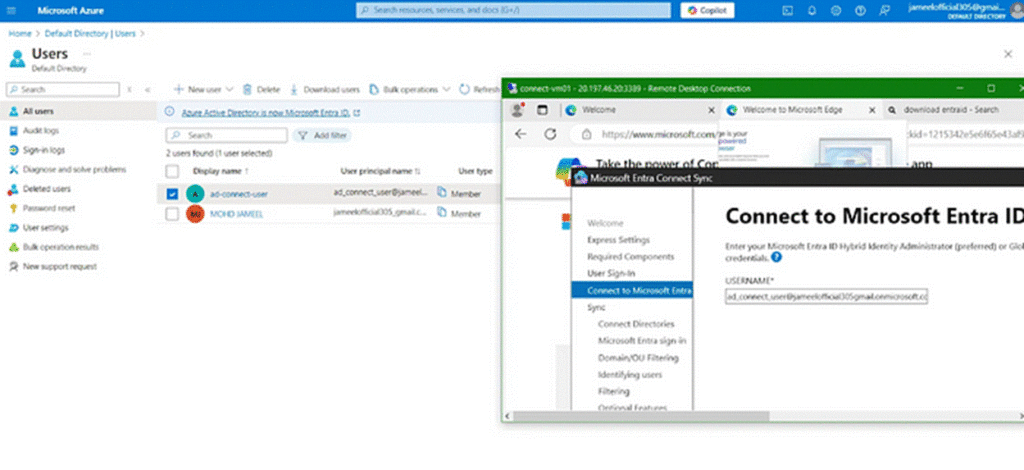
- Install Azure AD Connect on connect-vm01:
- Download the latest version of Azure AD Connect from the Microsoft website
- Run the installer and follow the setup wizard
Configure Azure AD Connect:
- Connect using the global administrator account you created earlier for Azure AD
- Choose the option to connect a new on-premises directory
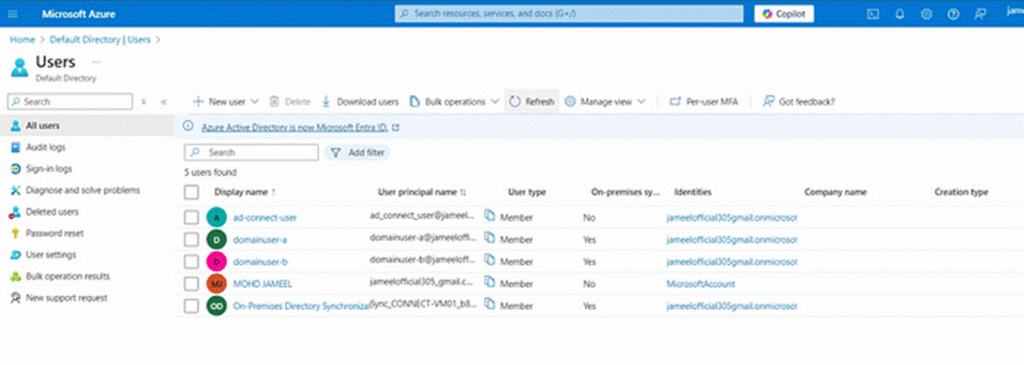
After completing the configuration, Azure AD Connect will begin synchronizing your on-premises Active Directory users to Microsoft Entra ID. You can verify the synchronization by checking the Azure portal, where you should see the synced users appearing in your Entra ID director
Step 4: Verifying Synchronization
After configuration, you should see your synced users in the Azure portal: