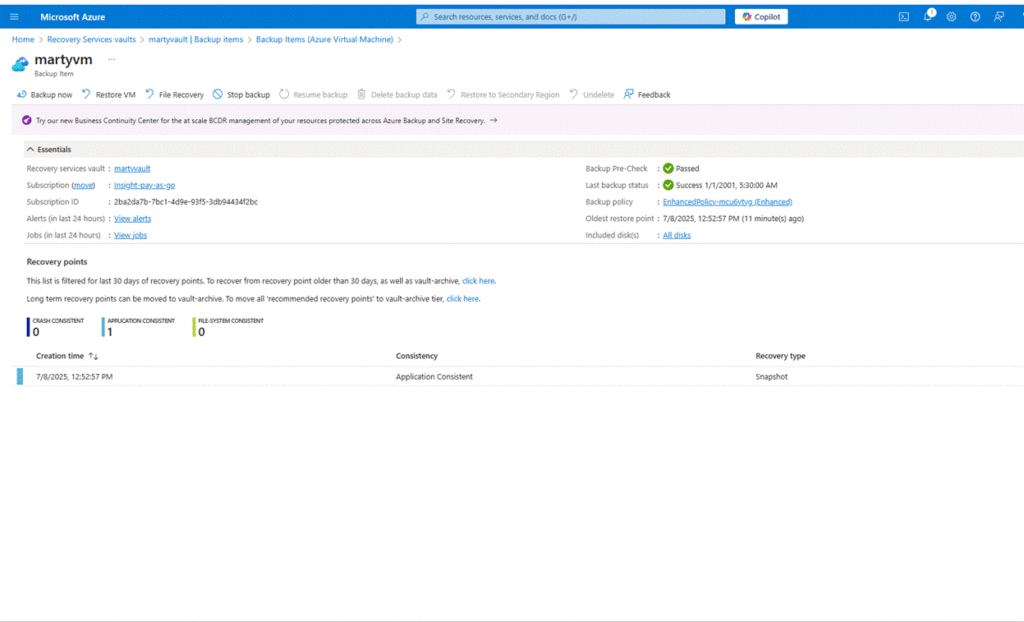
1. Open Azure Portal and create a Virtual Machine
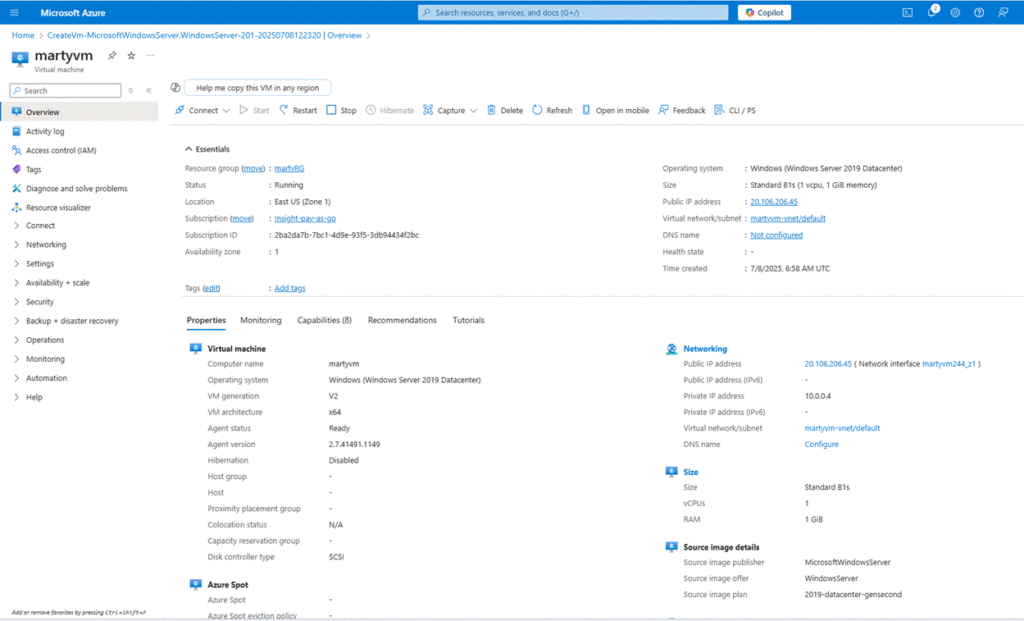
Go to the Azure Portal, click “Create a resource”, and select “Virtual Machine”.
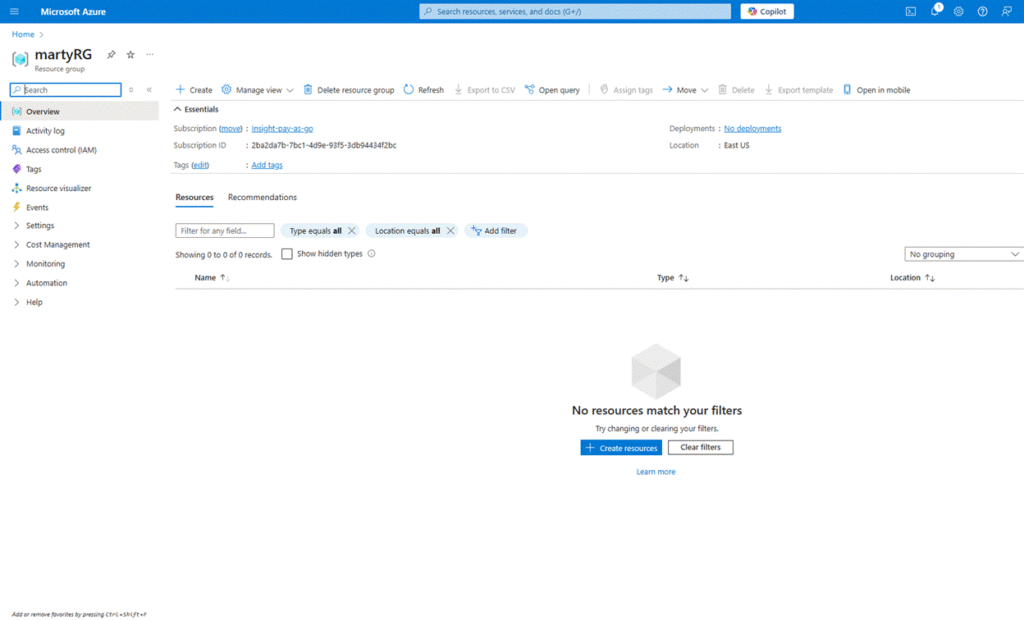
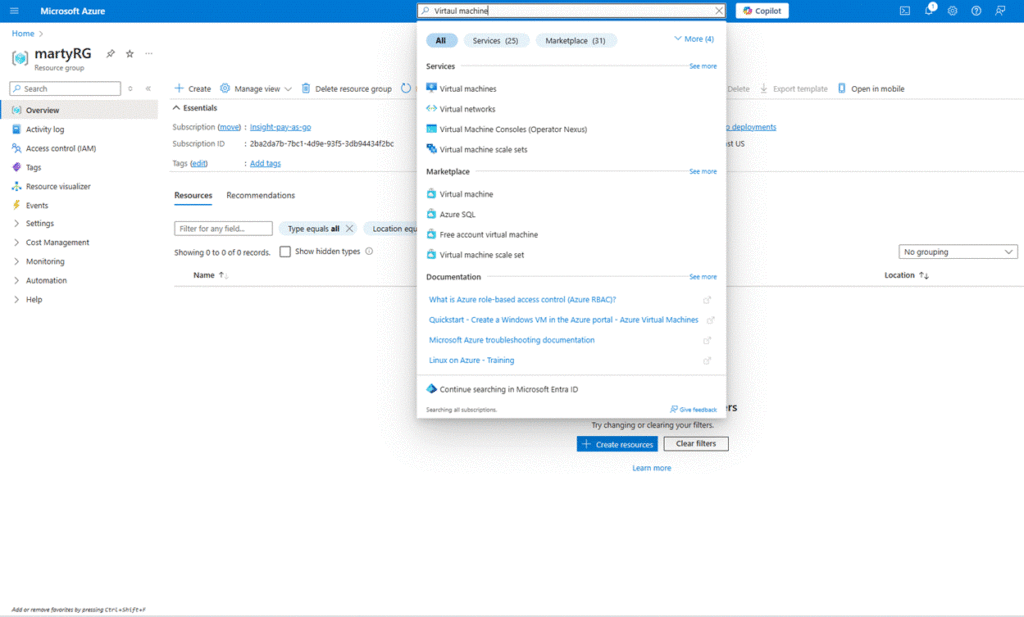
2. Fill in the VM details
On the Basics tab:
- Select your subscription and resource group (or create one).
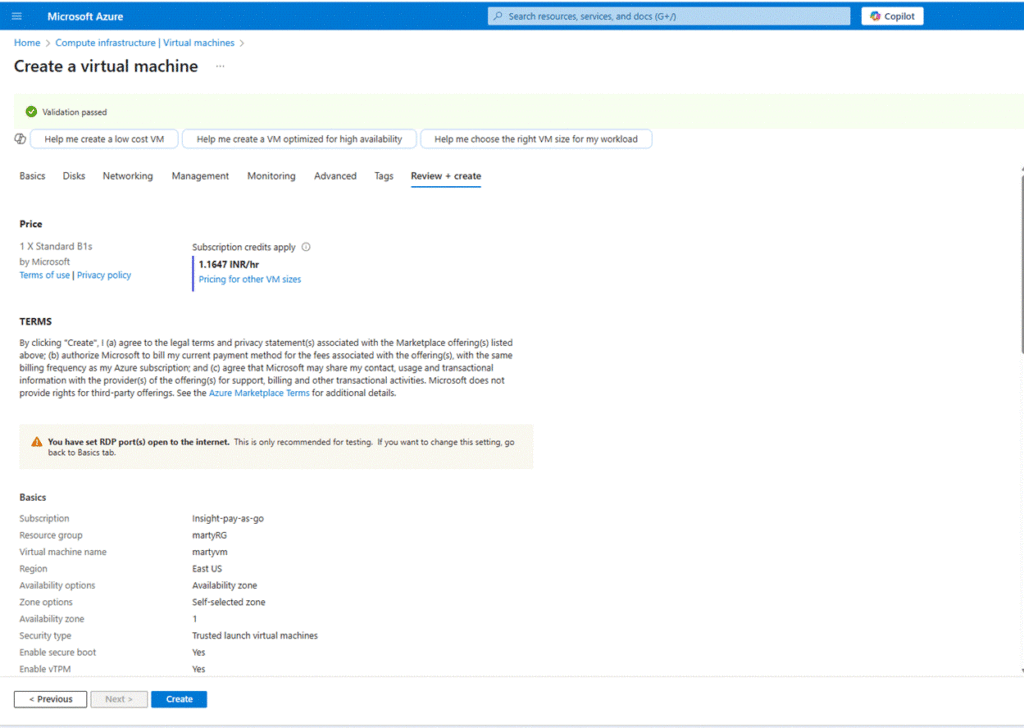
- Set a name like martyvm.
- Choose your region, image ( Windows Server 2019), size, and admin credentials.
3. Configure VM Networking and Review + Create
- On the Networking tab, accept defaults or customize the VNet/subnet as needed.
- Skip adding disks and other services unless required.
- On the Review + create tab, ensure validation passes.
Click “Create”, and capture a screenshot confirming deployment has started.
4. Create a Recovery Services Vault
- In the Azure Portal, search for “Recovery Services vault” and click “Create”.
- Provide a name ( martyvault), select the same region as your VM, and place it in the same resource group.
5. Enable backup for the VM
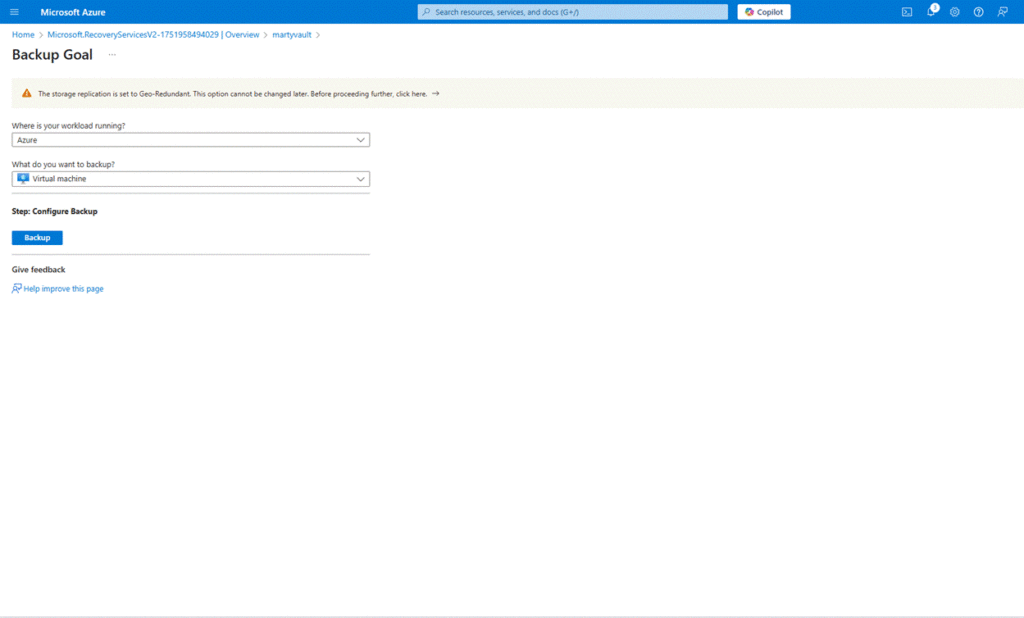
- Open the Recovery Services vault (martyvault) once it’s deployed.
- Under Getting Started, click Backup.
- Select Azure as the workload location, and choose Virtual Machine.
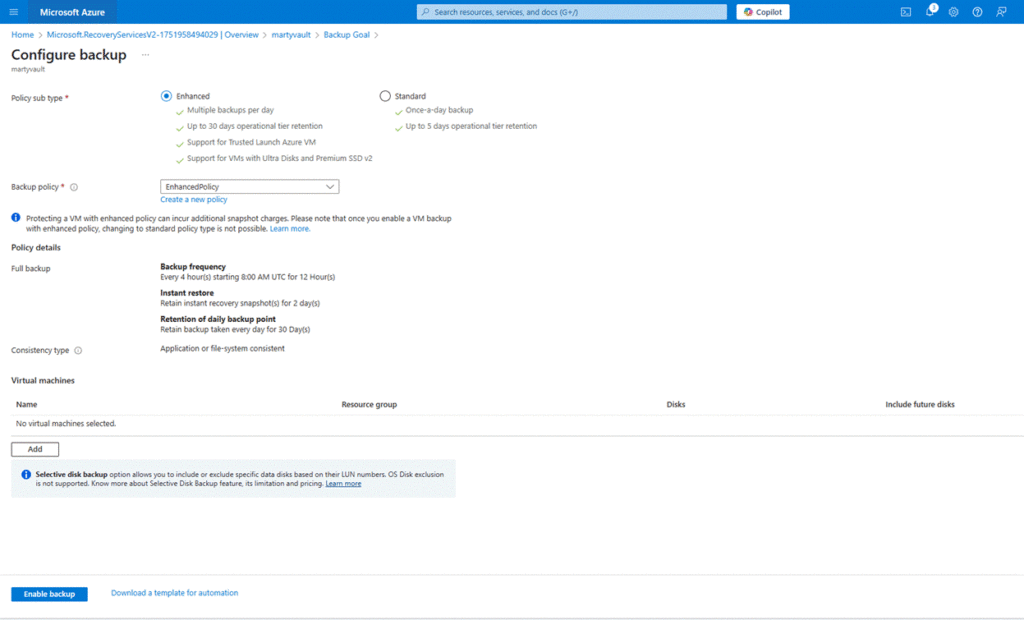
- Click Backup again, then select martyvm from the list and register it.
6. Define the Backup Policy
- In the same vault, go to Backup policies.
- Either use the default or click + Add to create a new policy:
- Name: marty-policy
- Frequency: Daily
- Time: 10:00 PM
- Retention Range:
- Daily: 7 days
- Weekly: every Sunday, retain for 4 weeks
- Ensure “Incremental backup” is selected for daily backups
7. Assign the Backup Policy to the VM
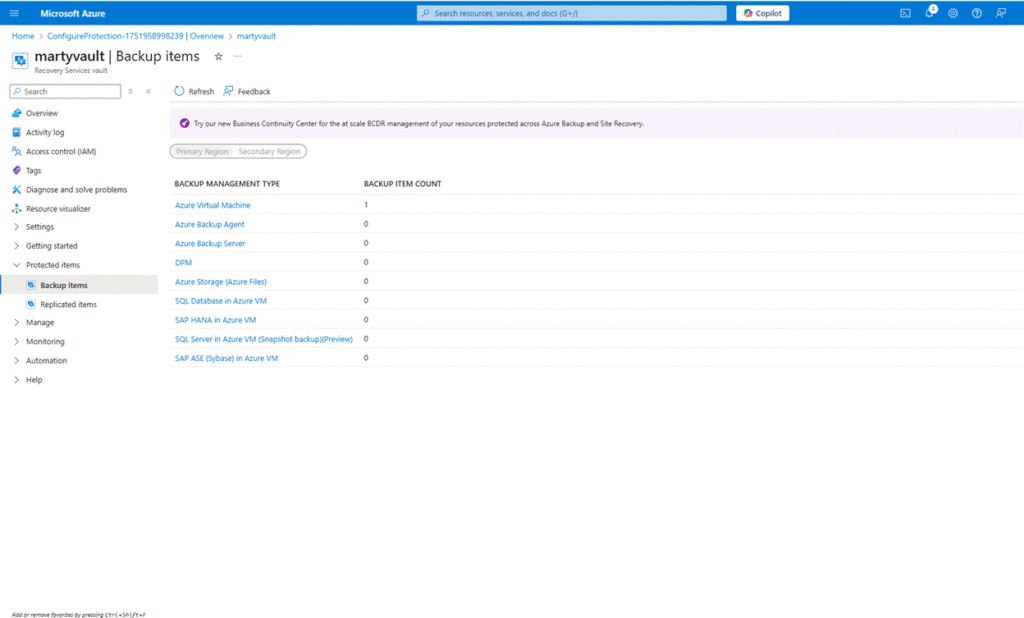
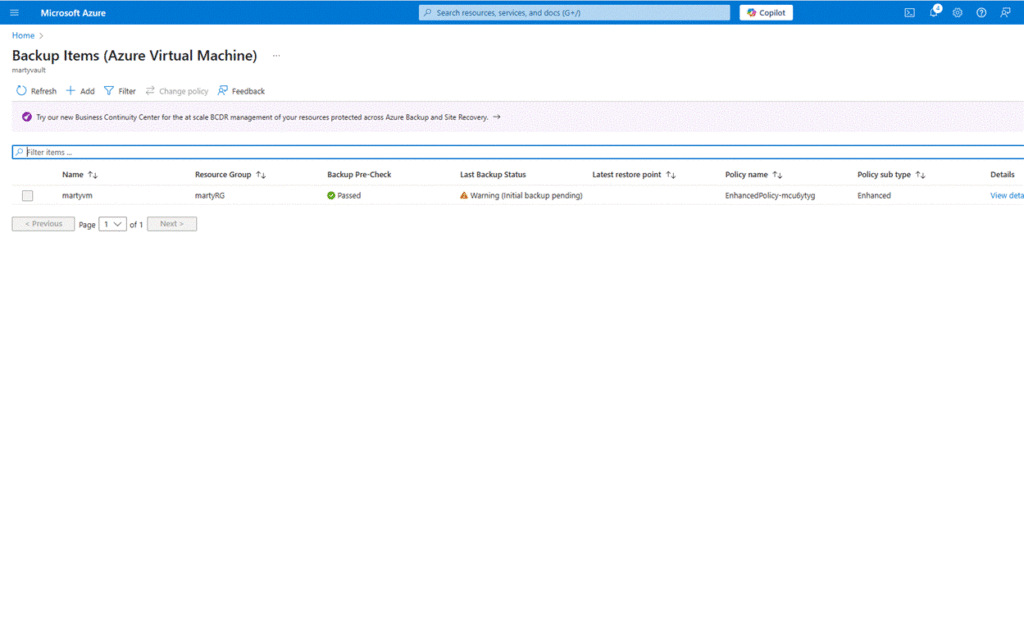
- After creating the policy, return to Backup items > Azure Virtual Machine.
- Find martyvm, and confirm that it is associated with the marty-policy.
8. Run the First Backup
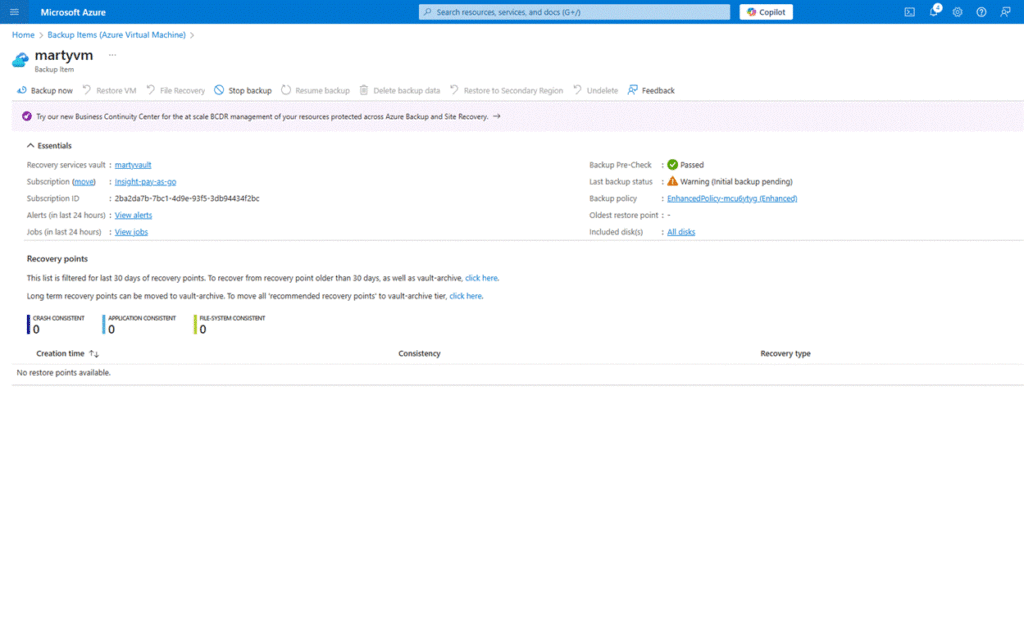
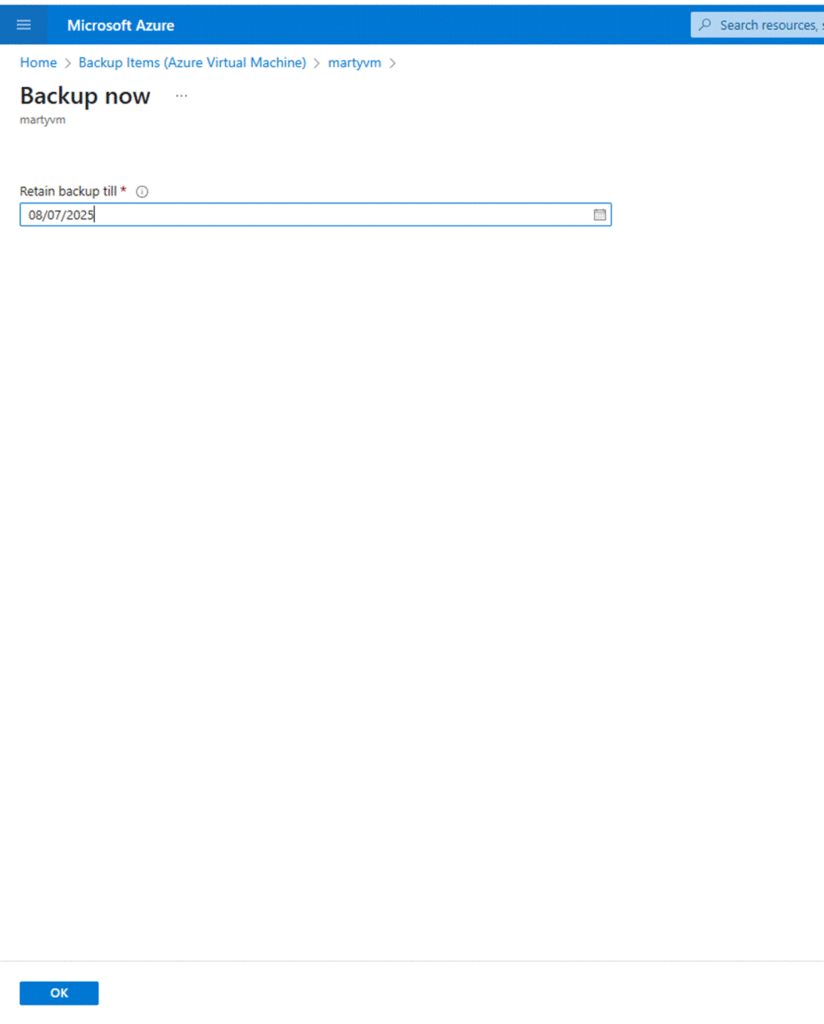
- From the Backup pane of the VM, click Backup now to initiate the first backup manually.
- Monitor the job status from the Backup jobs section.