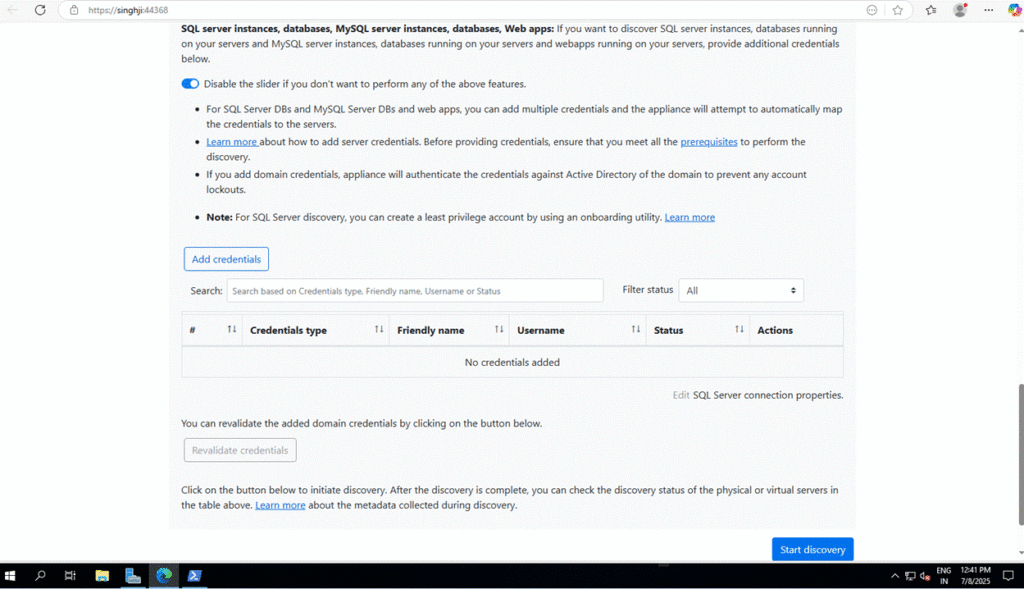
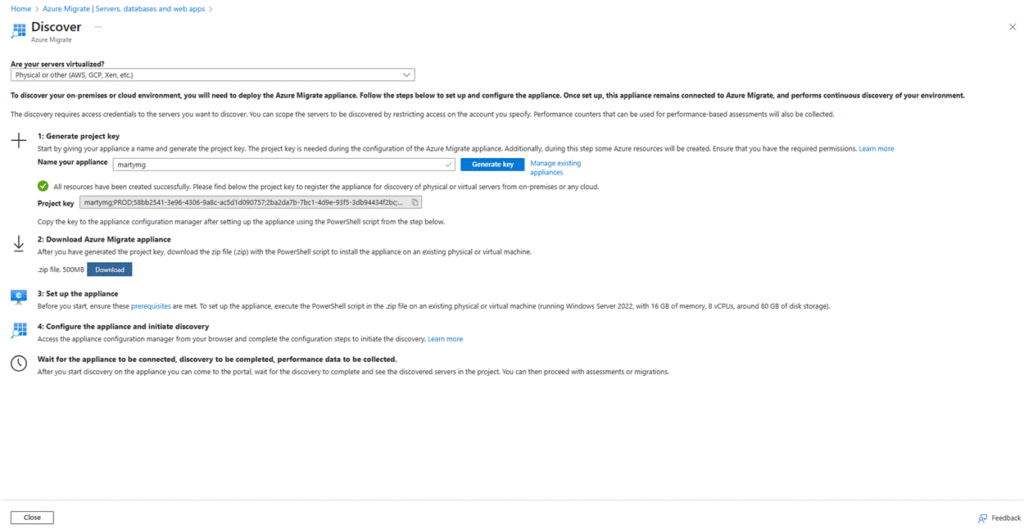
1. Open Azure Portal and Set Up Azure Migrate Project
- Go to the Azure Portal
- Search for “Azure Migrate” and select it
- Click “Servers” → “Discover”
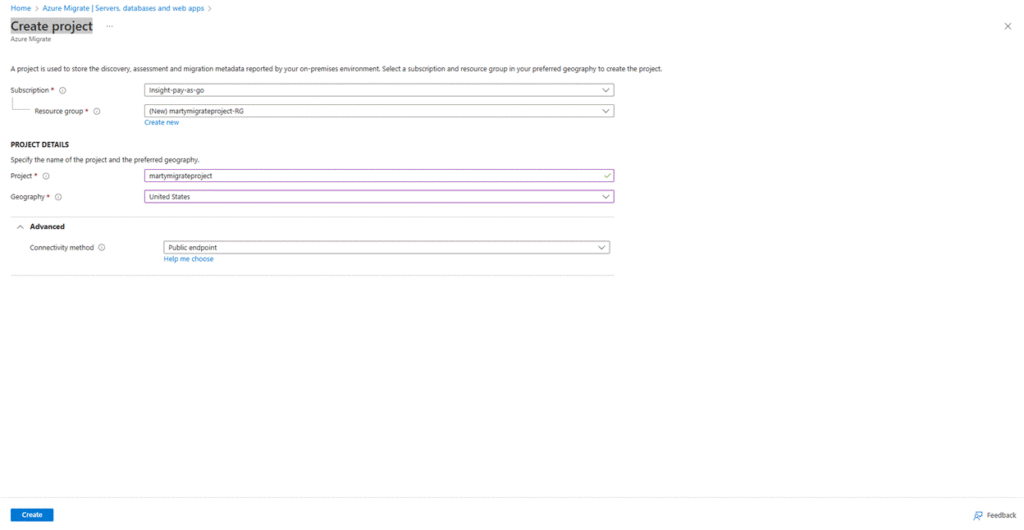
- Create a new migration project:
- Name: martymigrateproject
- Select subscription, resource group, and region
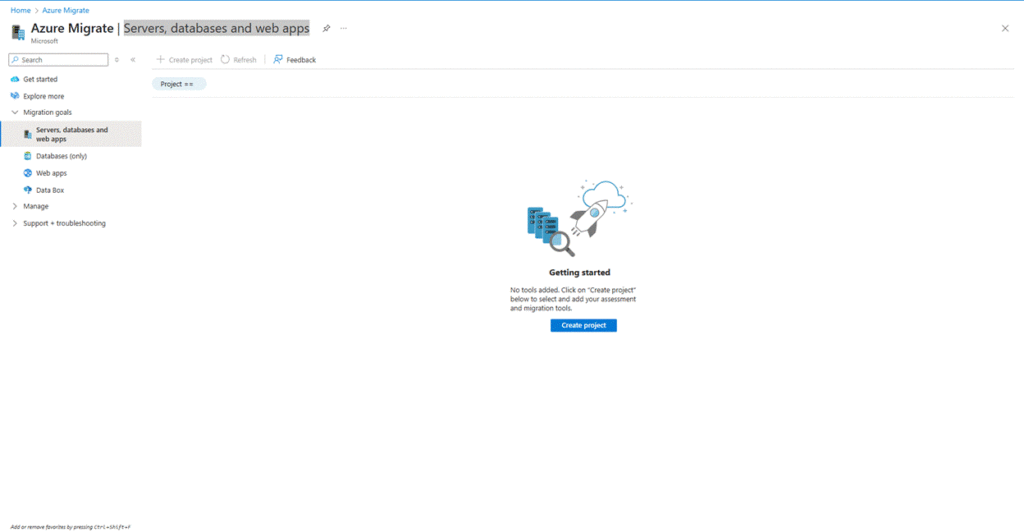
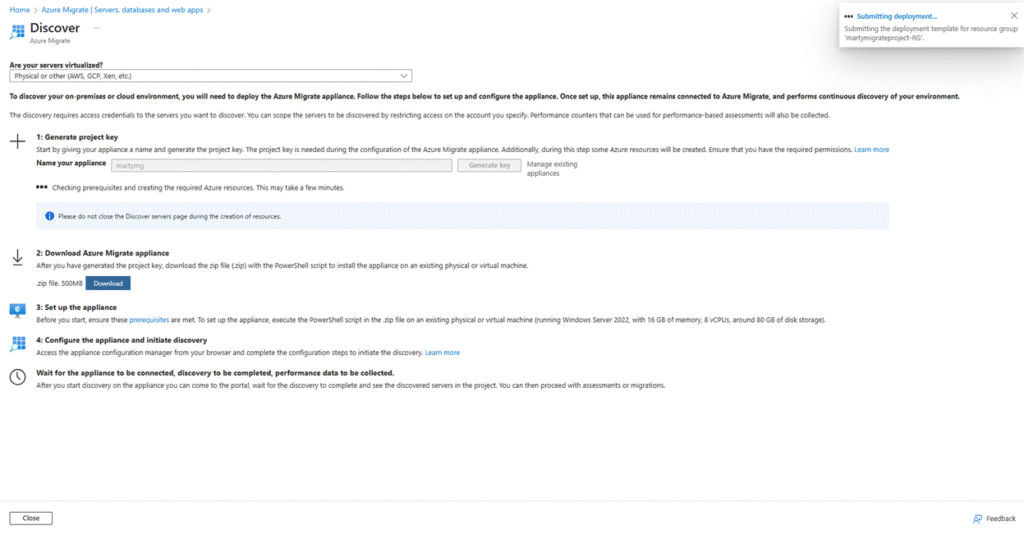
2. Download Azure Migrate Appliance for Physical Servers
- Choose “Discover using Appliance”
- Select “Physical Server” as the source
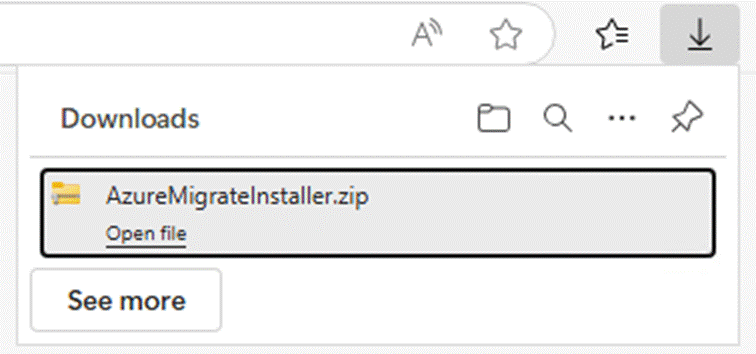
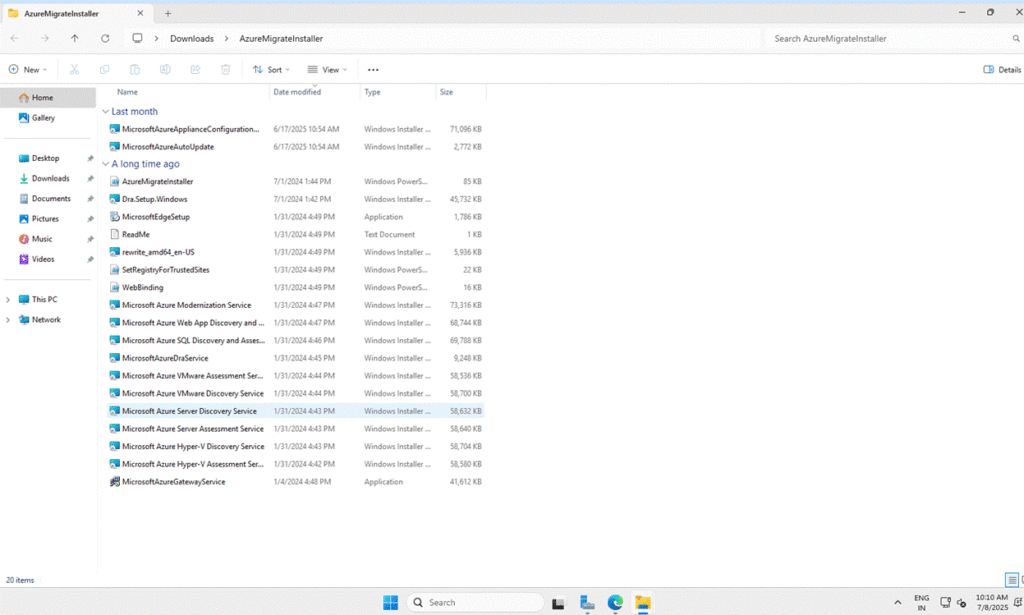
- Download the Azure Migrate appliance installer and key file
3. Prepare the On-Premises Server (Windows Server 2019)
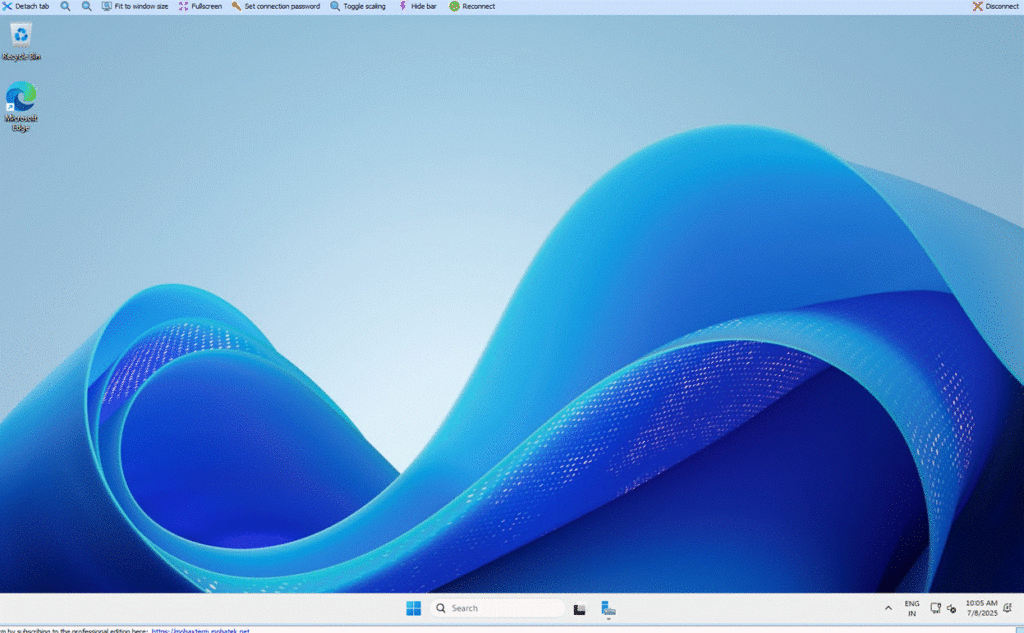
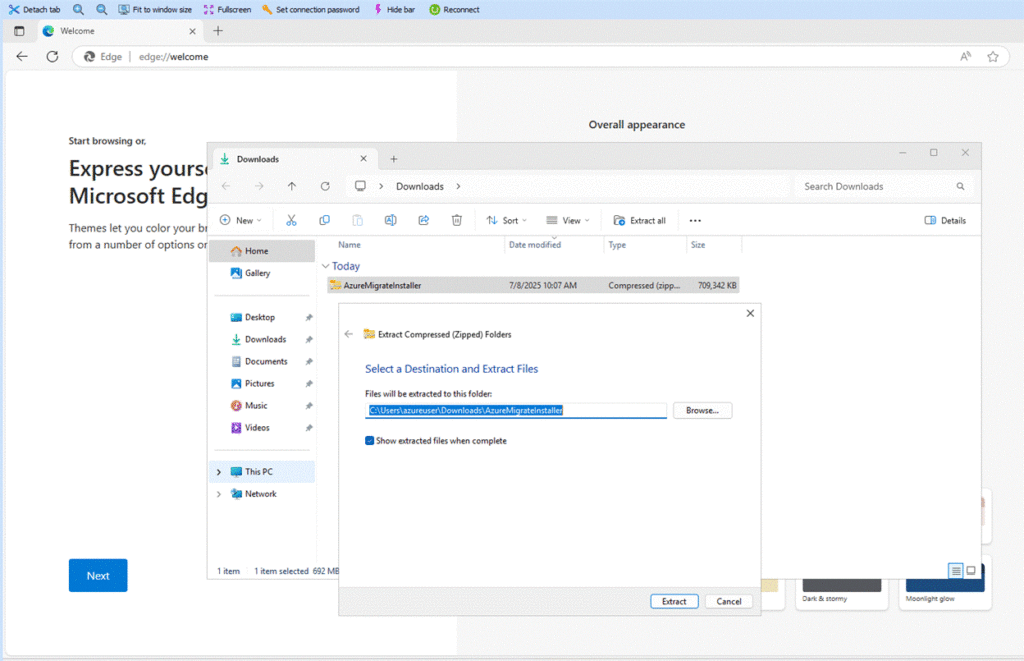
- Copy the installer and key file to the on-prem physical server
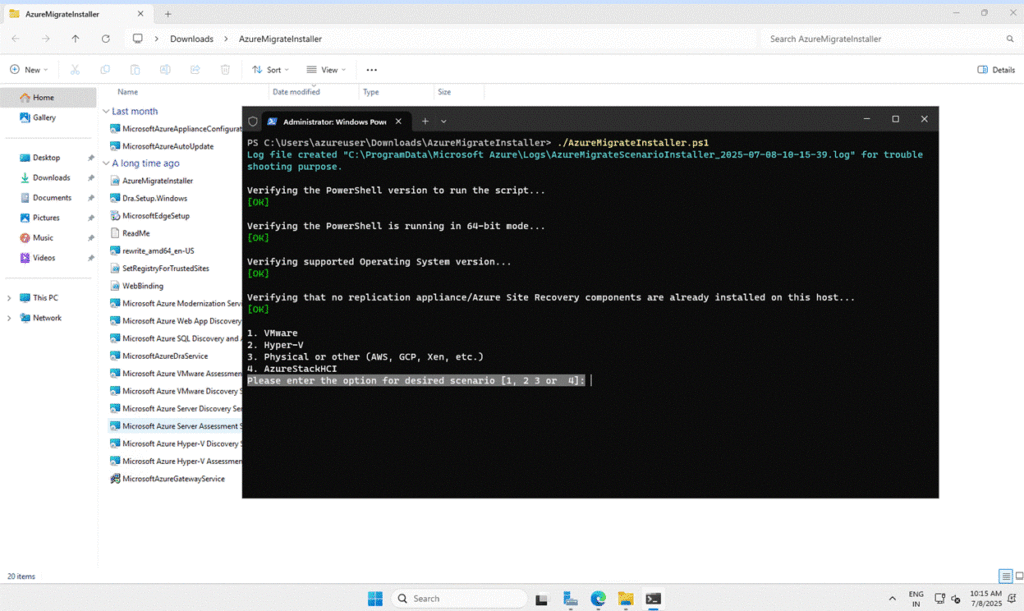
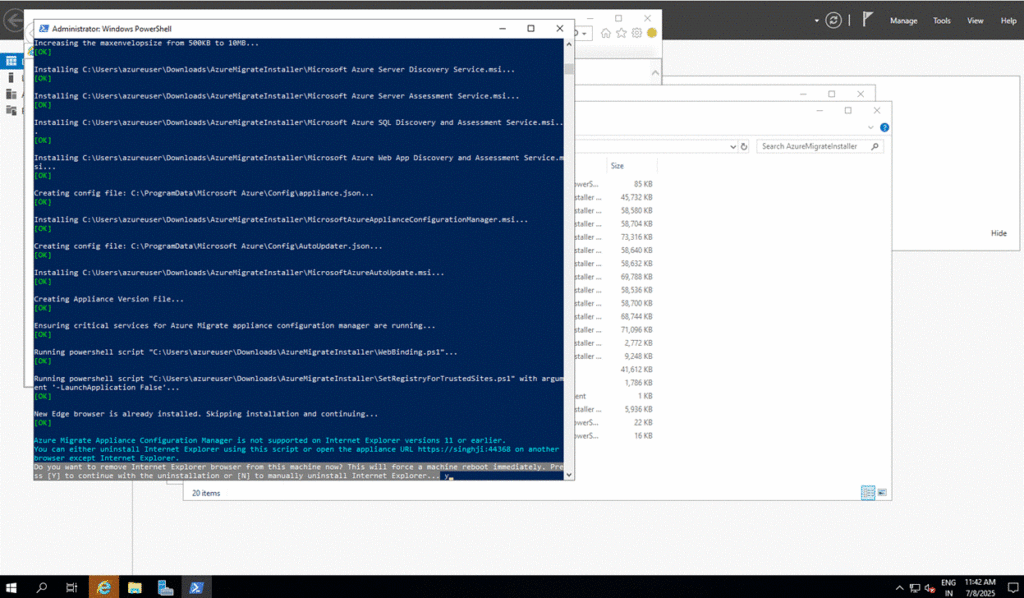
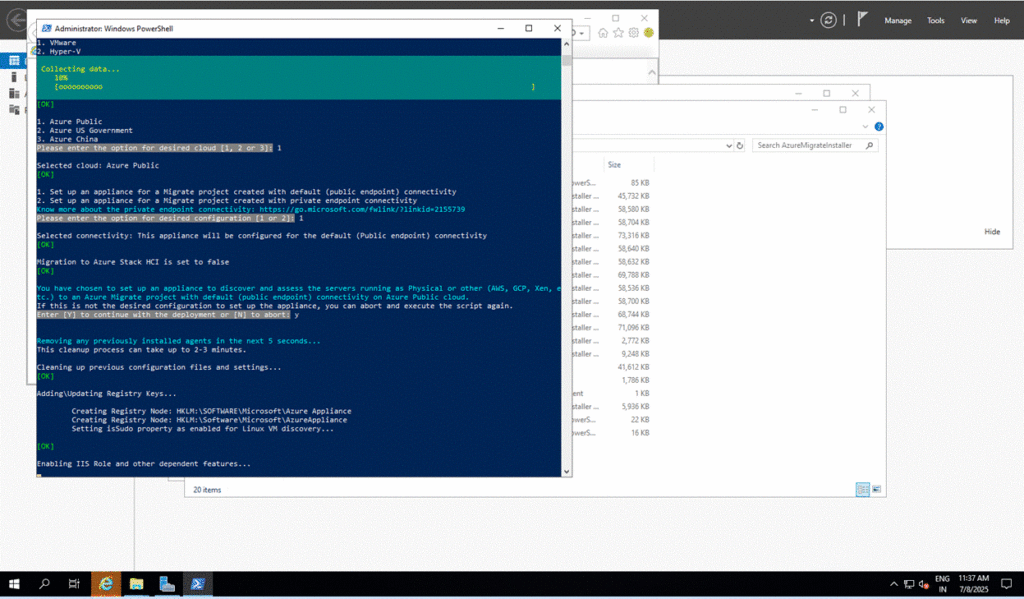
- Run the installer to set up the Azure Migrate Appliance
- During setup, enter the key file when prompted and connect to the internet
4. Start Discovery from Azure Portal
- Back in the Azure Migrate portal, confirm that the appliance is connected
- Wait for Discovery to complete (this may take a few minutes)
- Once complete, you’ll see martyserver2025 listed under discovered machines
5. Assess the Server
- In the Azure Migrate project, go to “Servers” > “Assess”
- Create a new assessment for martyserver2025
- Select assessment type (Performance-based recommended)
- Generate the assessment to view cost and size recommendations
Take a screenshot of the assessment summary.
6. Replicate the Server
- In the Migrate section, click “Replicate”
- Choose martyserver2025 from discovered servers
- Specify target details:
- Subscription, resource group, region, VM size, network settings
- Subscription, resource group, region, VM size, network settings
- Set up the replication settings and start replication
7. Perform Actual Migration
- After validation, click “Migrate” on the same machine
- Decide whether to shut down the source machine
- Once complete, the VM (martyvm) will appear in your Azure portal