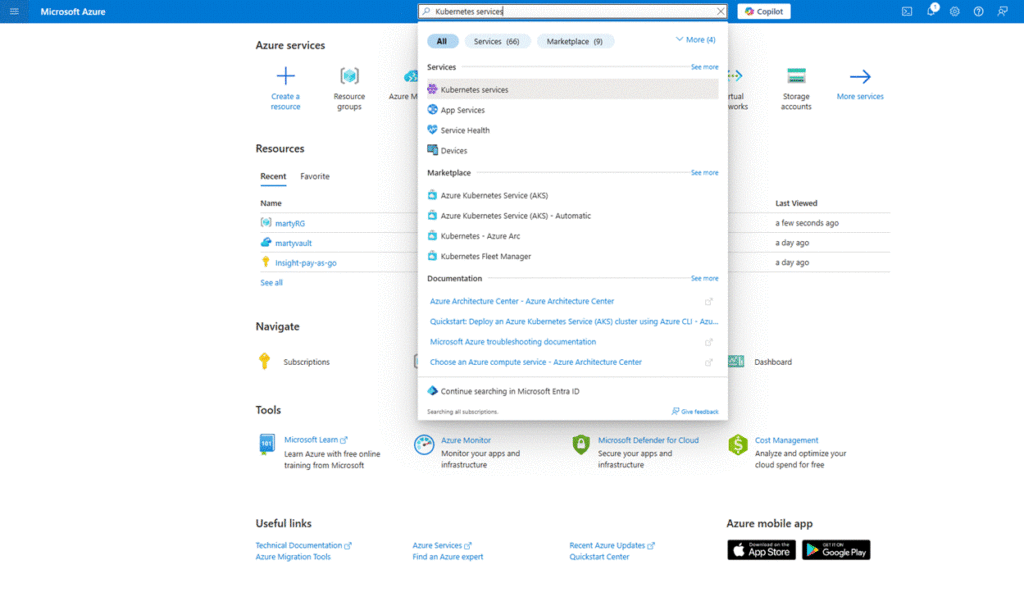
- Open Azure Portal and Search for Kubernetes Service
- Go to https://portal.azure.com
- In the search bar, type “Kubernetes services” and select it
- Click “Create” to begin creating a new AKS cluster
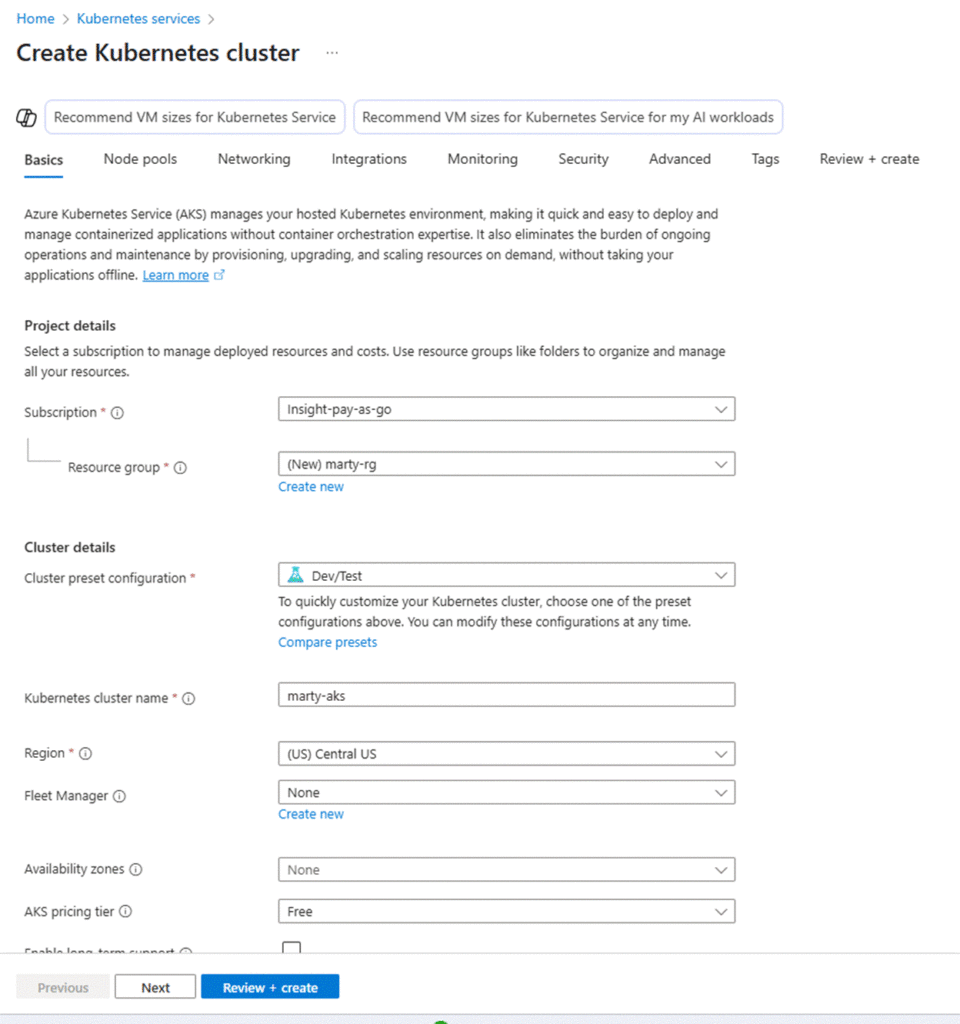
2. Configure Basics
- Subscription: Select your active subscription
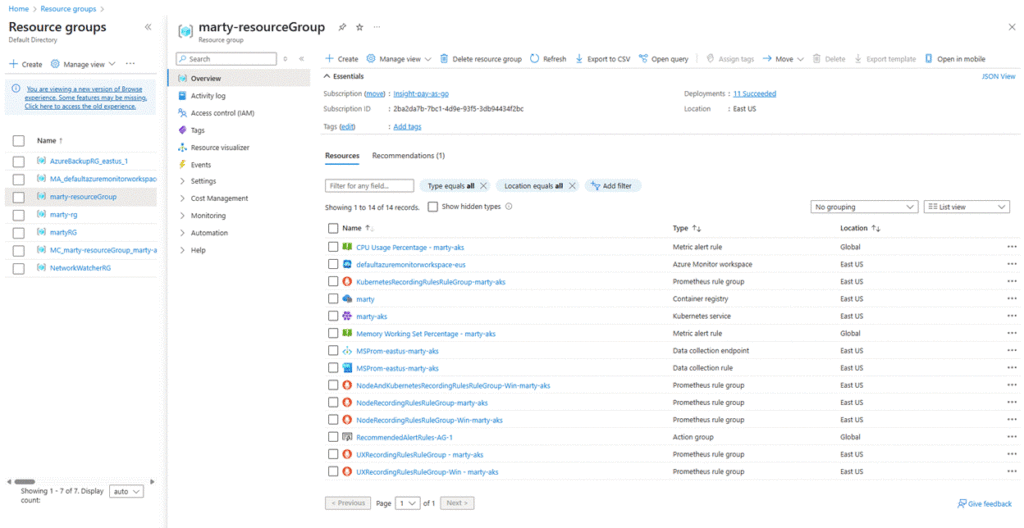
- Resource group: Create or select one ( marty-rg)
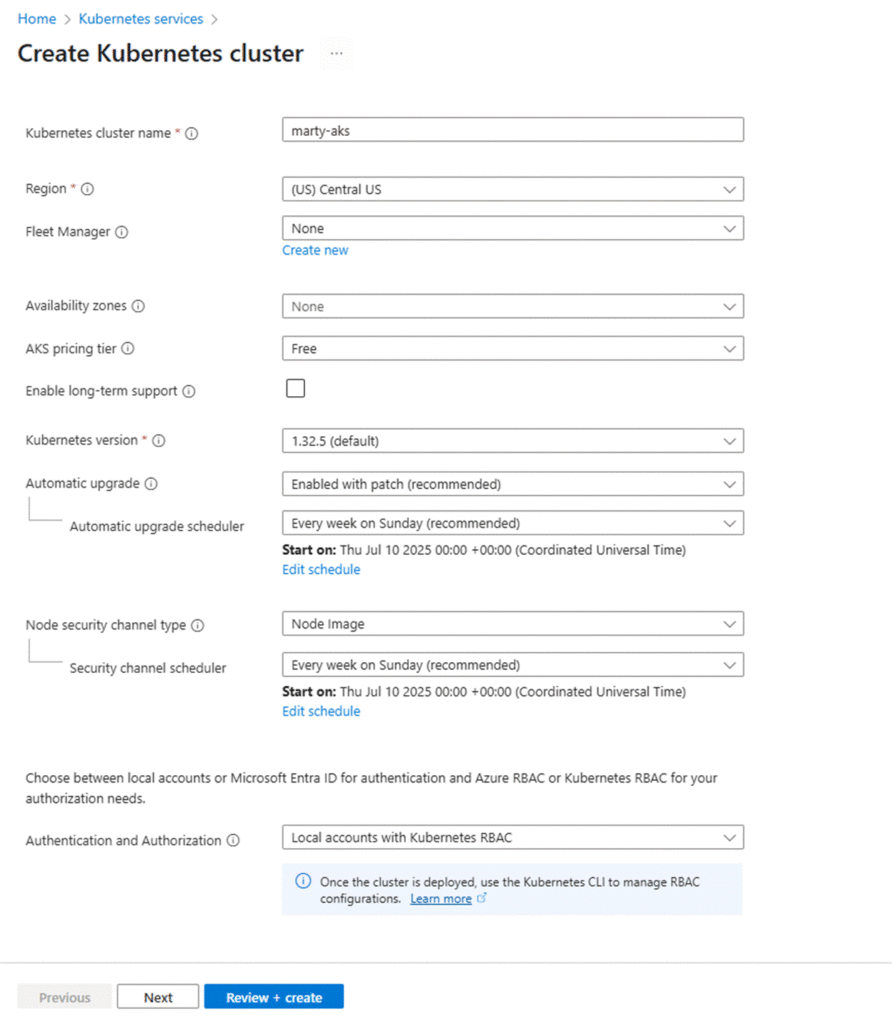
- Cluster name: Enter a name ( marty-aks)
- Region: Choose your preferred region
- Kubernetes version: Leave default or choose the latest stable version
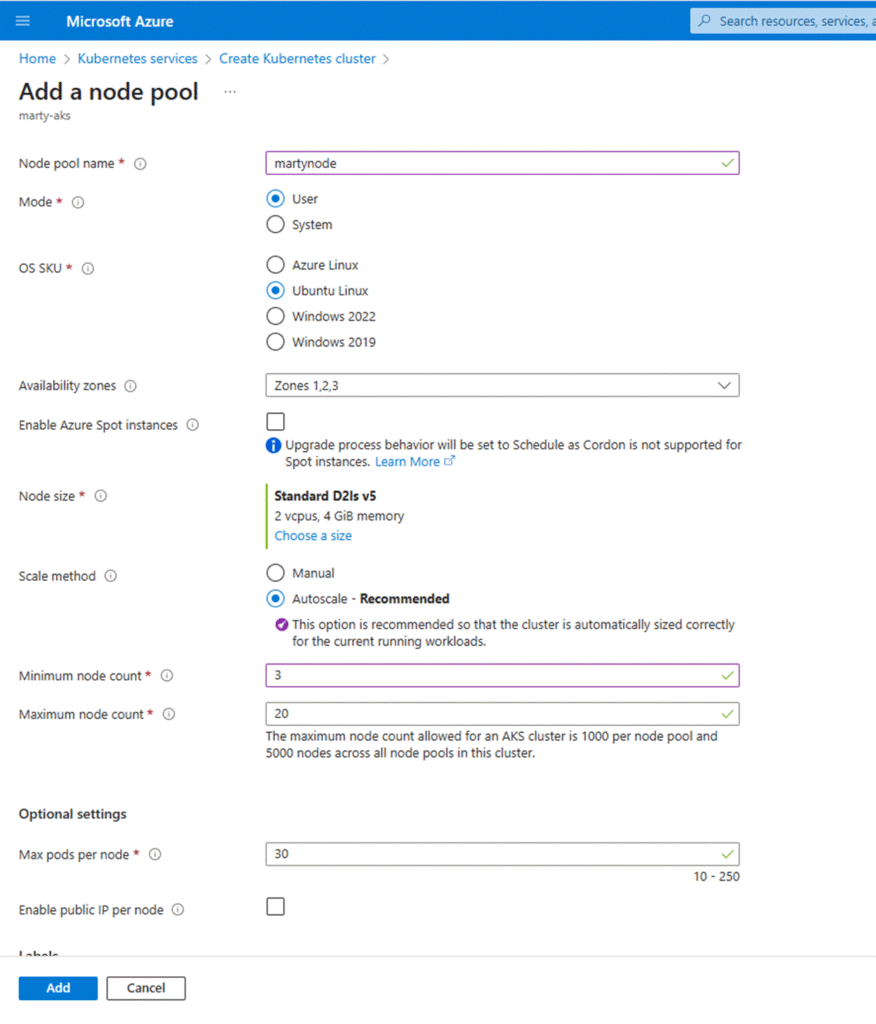
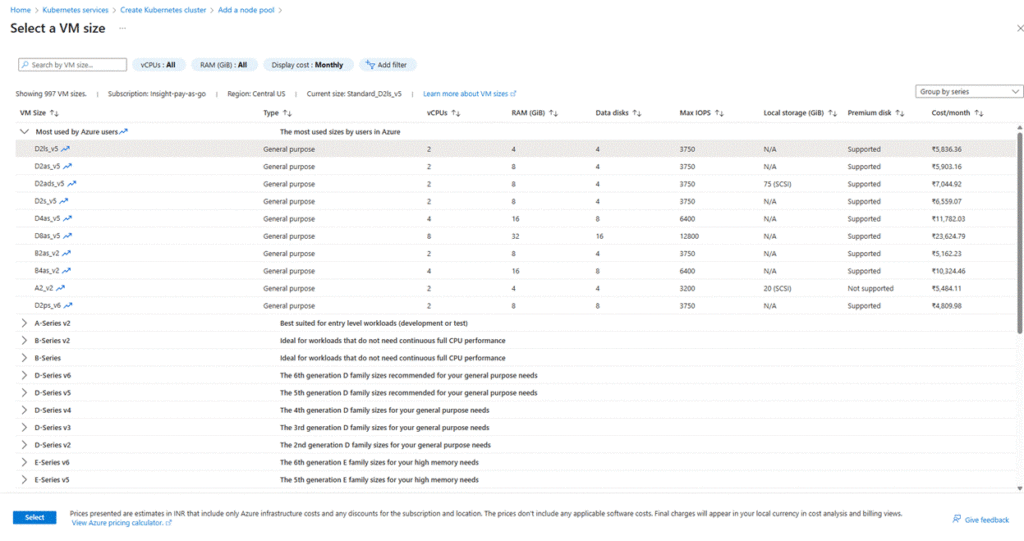
3. Configure Node Pool (3 Nodes)
- Node size: Choose a VM size like Standard_DS2_v2
- Node count: Set initial node count to 3
- Node pool name: marty-nodepool
- Leave auto-scaling disabled unless required
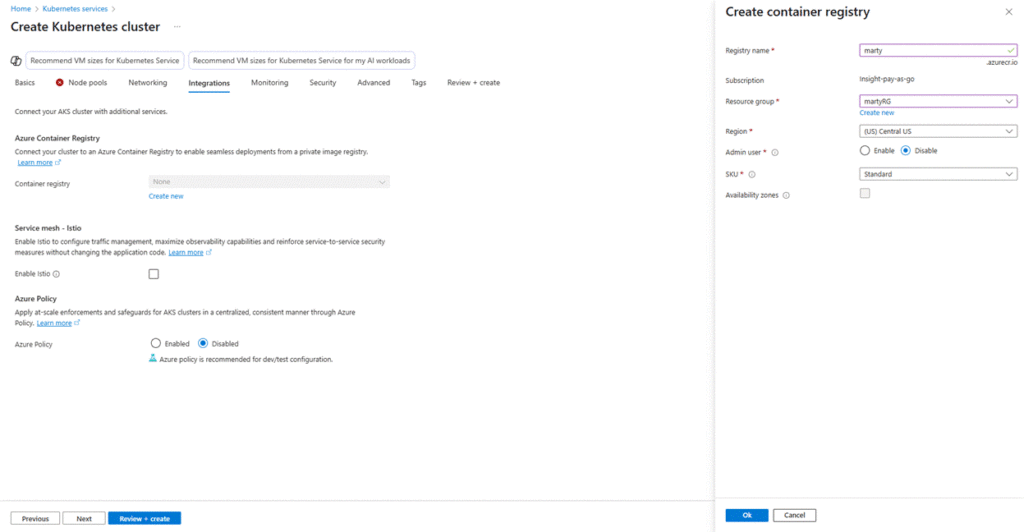
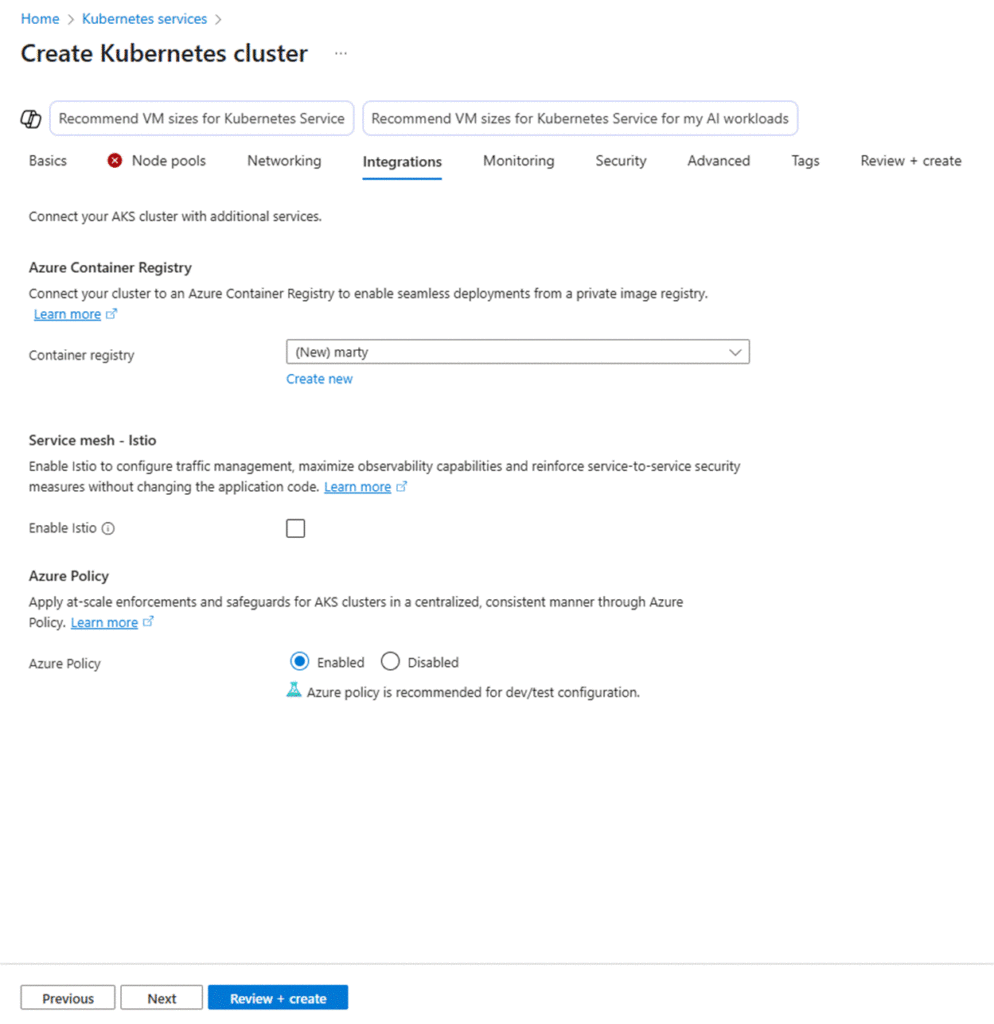
4. Configure Access
- Under the Access tab:
- Authentication method: Select System-assigned managed identity
- Enable RBAC (Role-Based Access Control)
- Optionally, integrate with Azure Active Directory
- Authentication method: Select System-assigned managed identity
5. Networking Configuration
- Choose Azure CNI networking (for advanced network control)
- Leave default networking values unless you have a custom VNet
- Keep HTTP application routing disabled for now
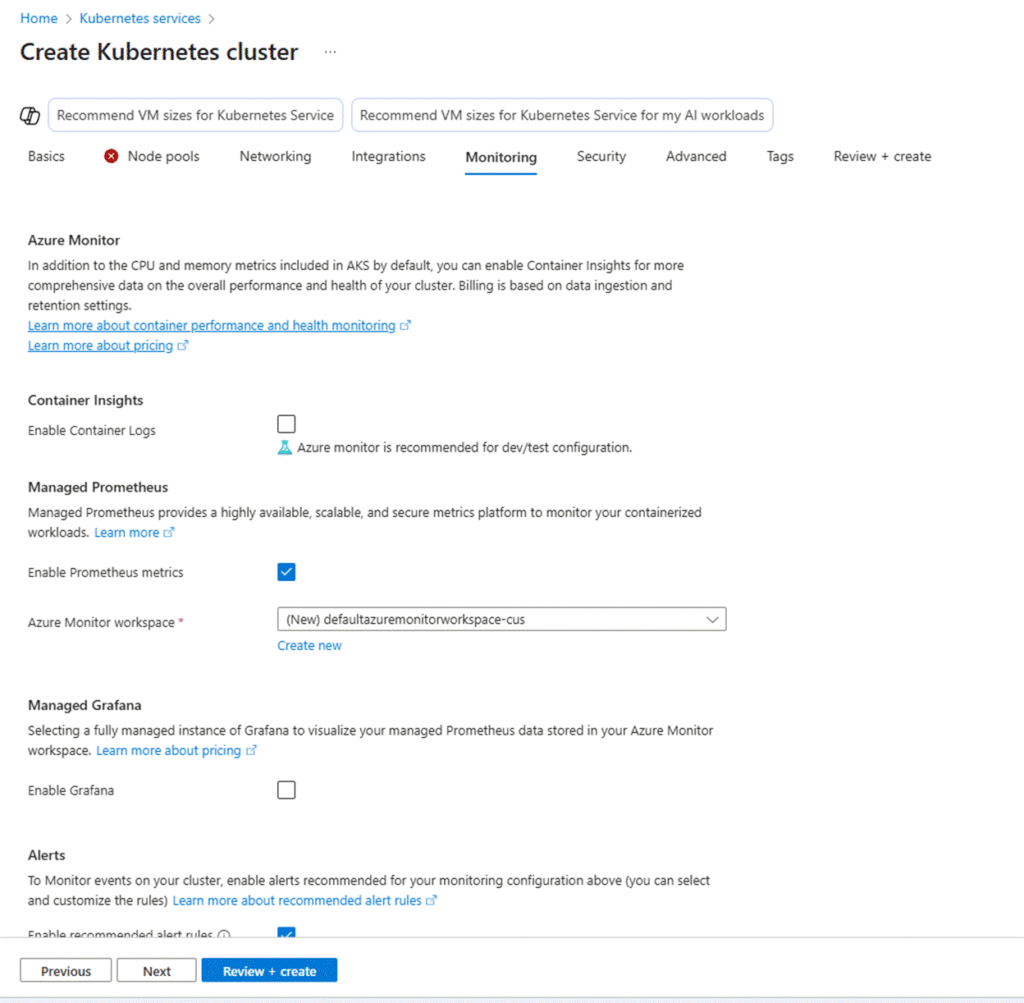
6. Review + Create
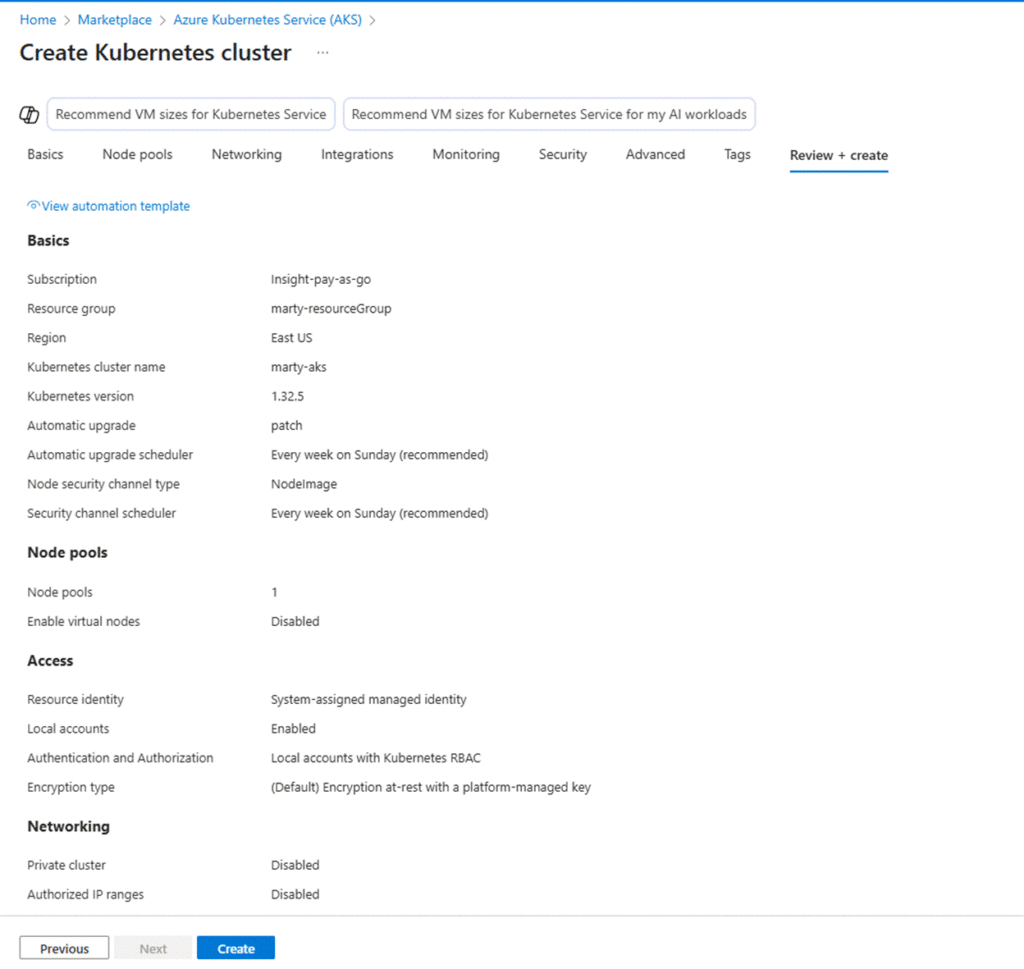
- Click through tabs or directly go to Review + create
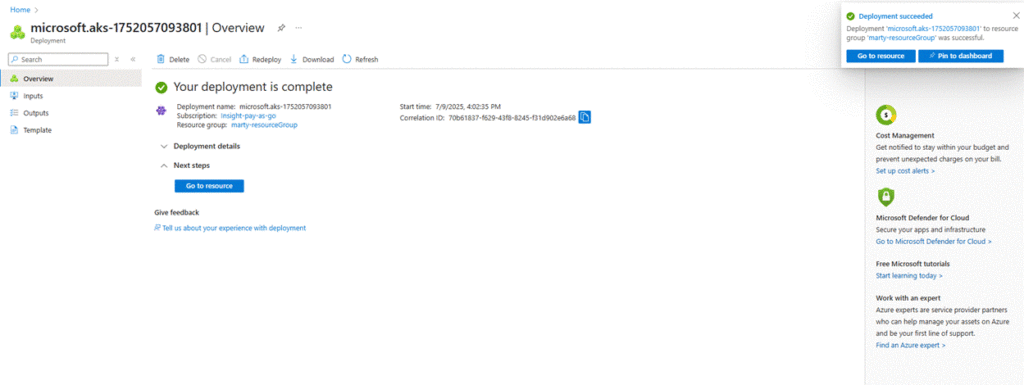
- Validate settings, and once complete, click Create
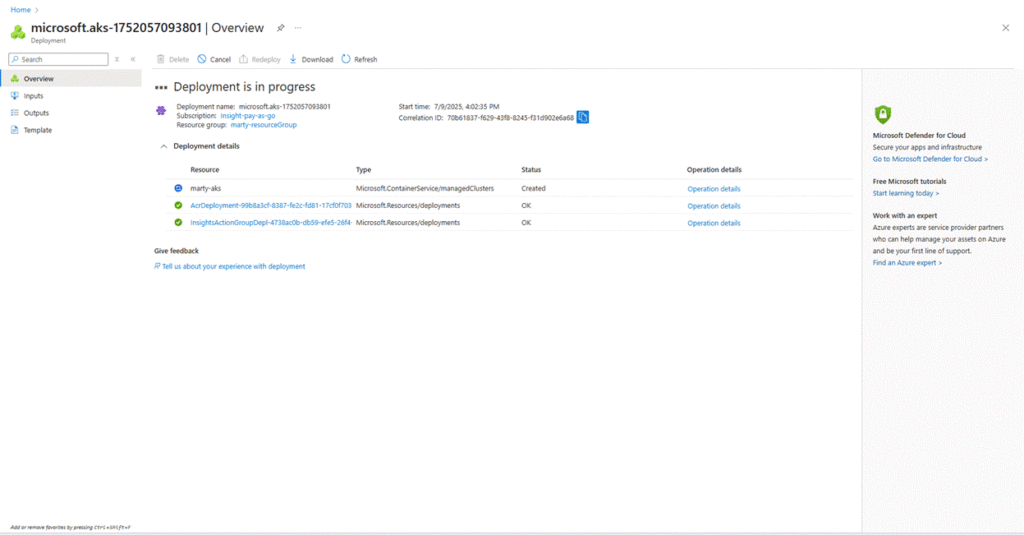
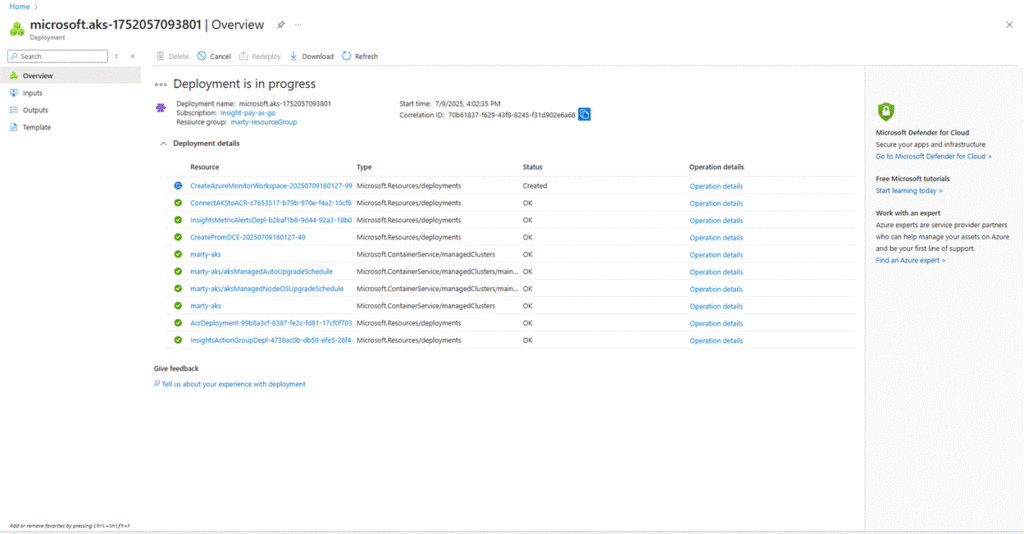
- The cluster will take a few minutes to deploy
7. Access the AKS Cluster
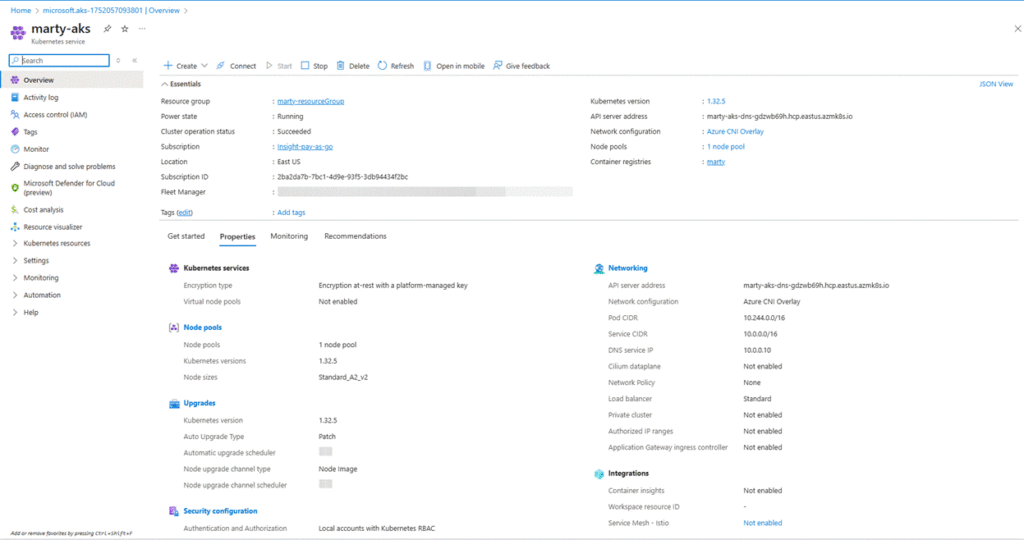
- After deployment, go to the Kubernetes service resource
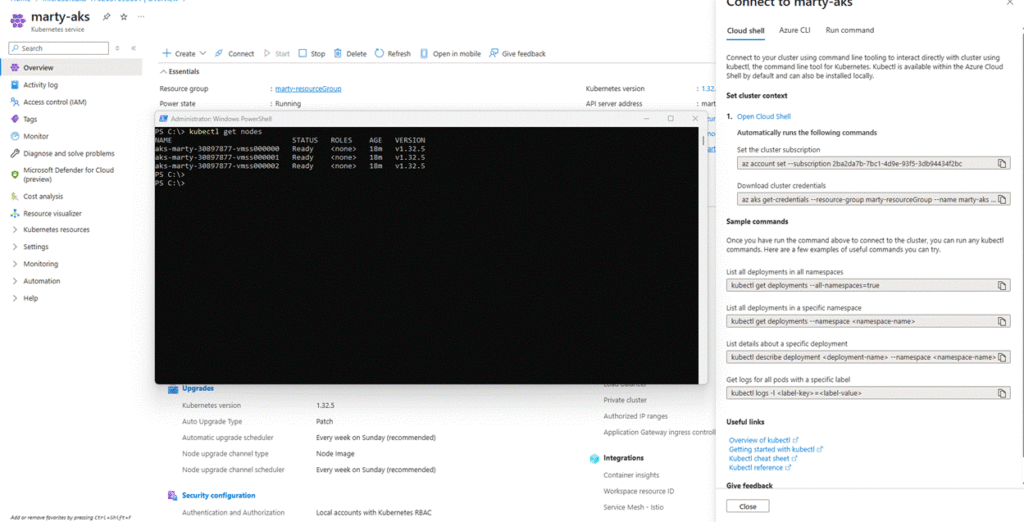
- Click “Connect” and follow the instructions to download and use kubectl
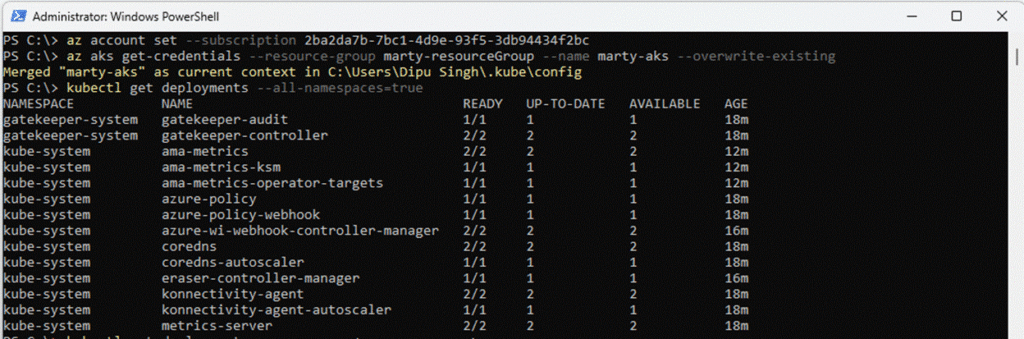
Run the following to verify cluster connection:
az aks get-credentials –resource-group marty-rg –name marty-aks
kubectl get nodes