1. Prerequisites
You must have the following in place before creating the alert:
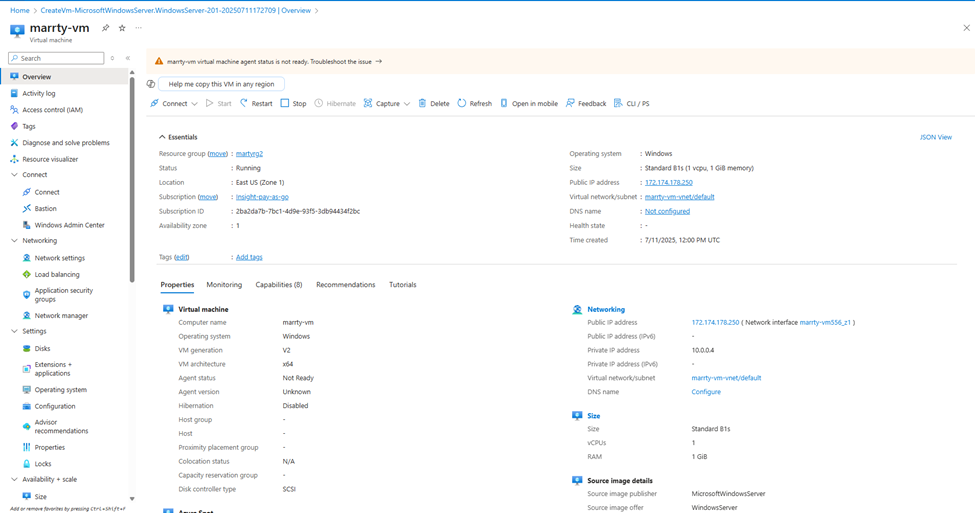
An Azure Virtual Machine ( Windows Server)
A Log Analytics Workspace
The Azure Monitor Agent (AMA) installed
The VM connected to the Log Analytics Workspace
2. Enable Diagnostics and Performance Counters
Open the Azure Portal
Go to your Virtual Machine
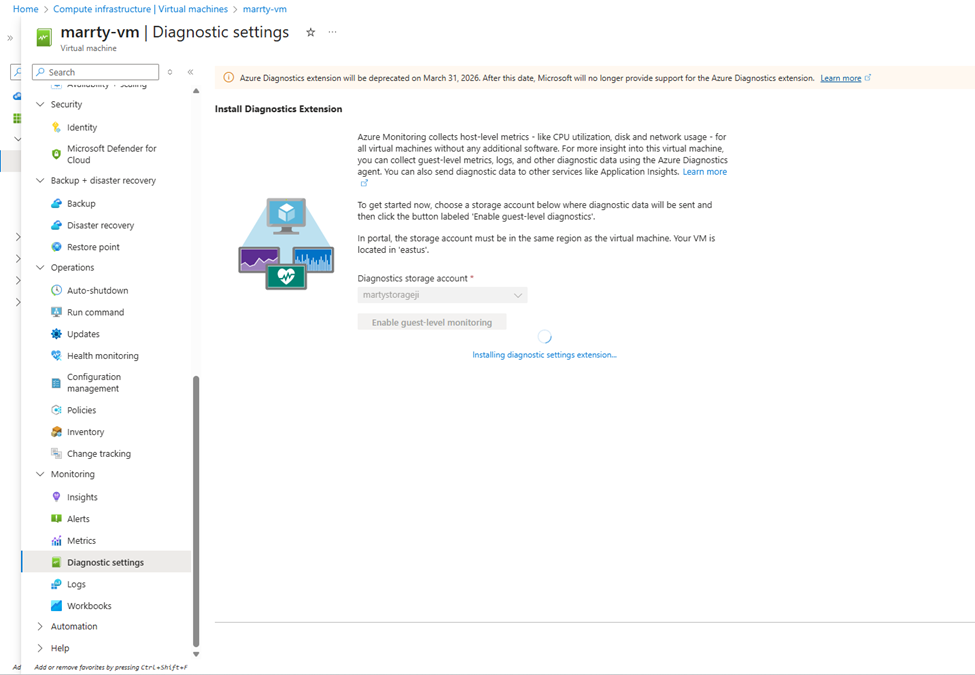
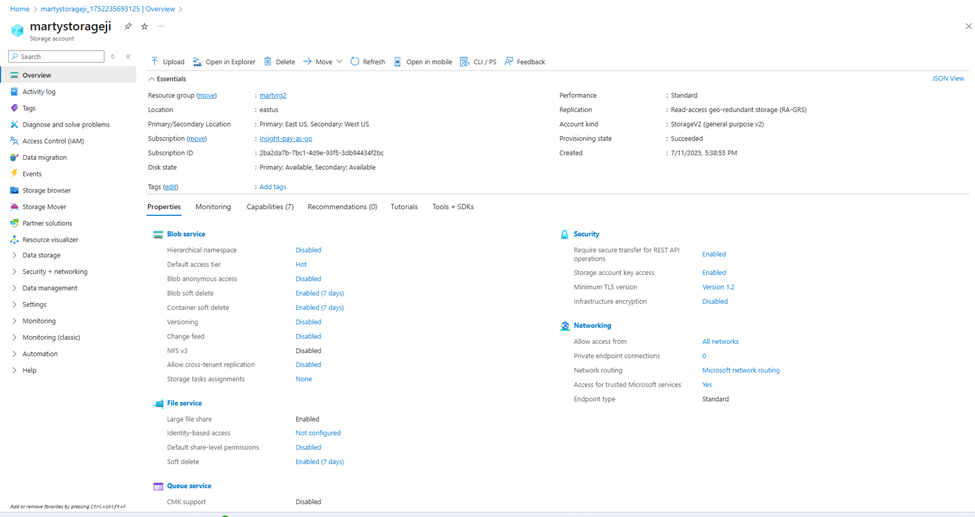
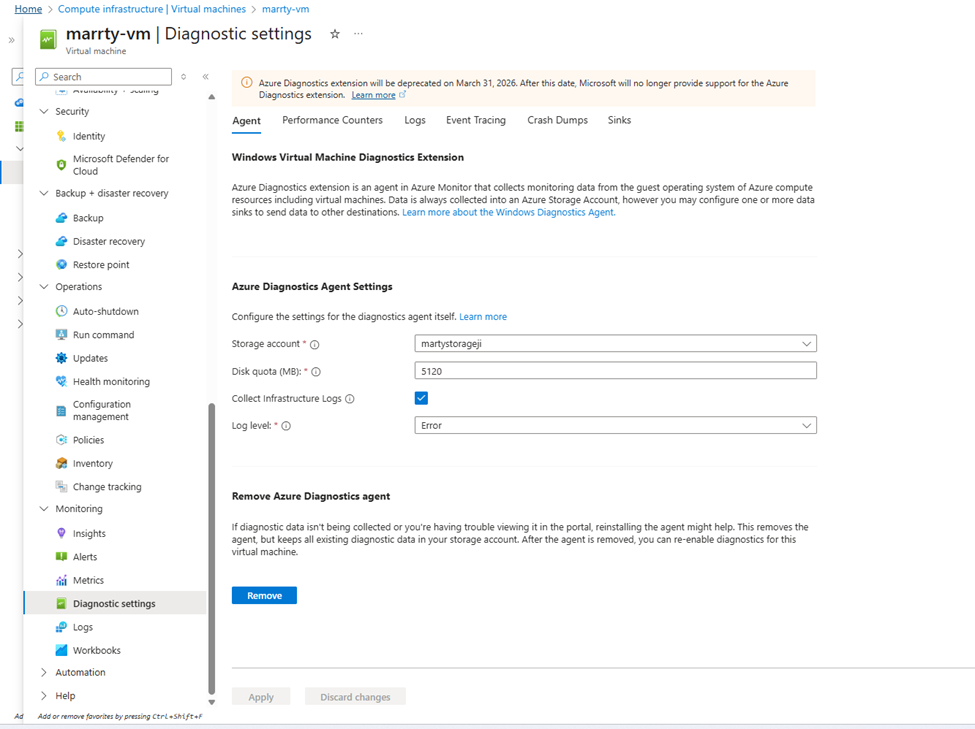
Under Monitoring > Diagnostic settings, ensure diagnostics are enabled
Set up and connect to a Storage Account if not already done
In the Performance counters section, select:
Object: LogicalDisk
Counter: % Free Space
Click Save
3. Connect the VM to a Log Analytics Workspace
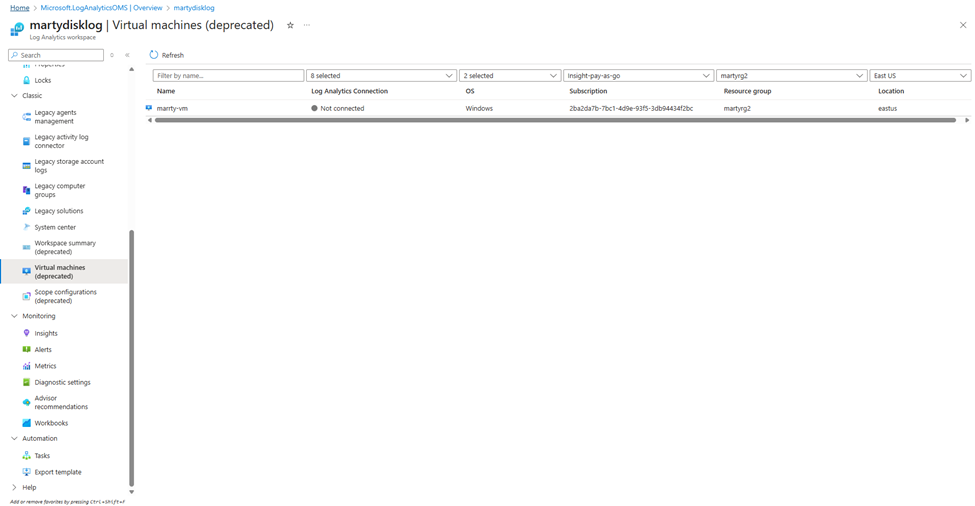
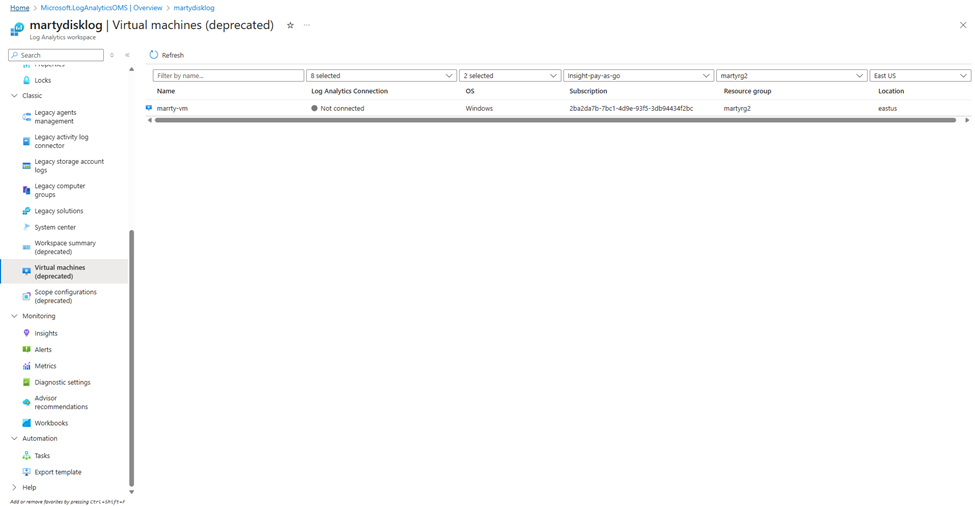
Navigate to your Log Analytics Workspace
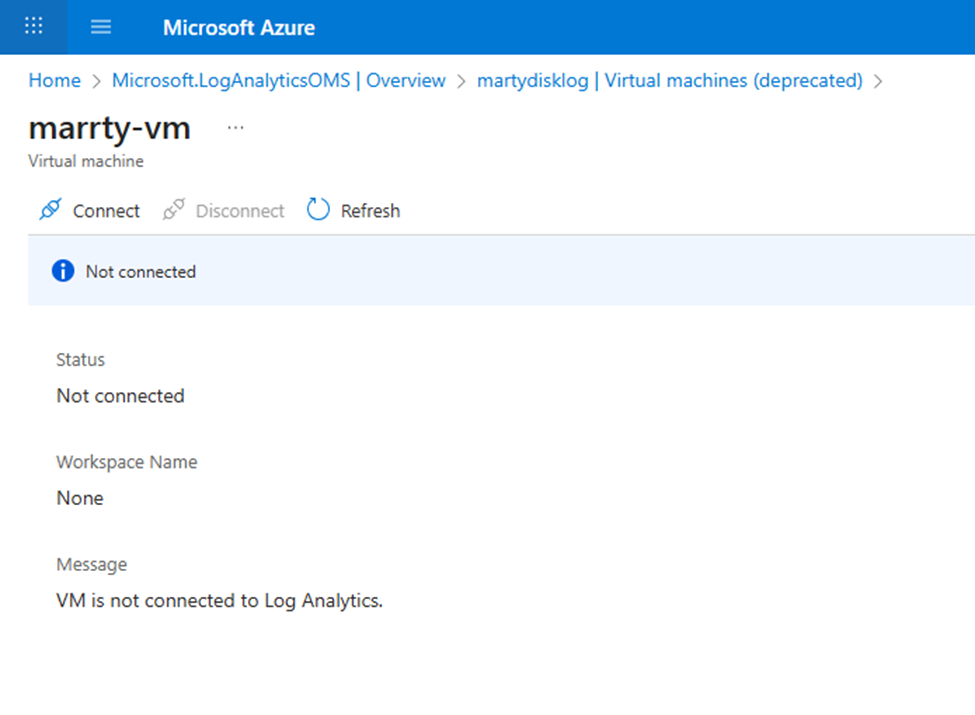
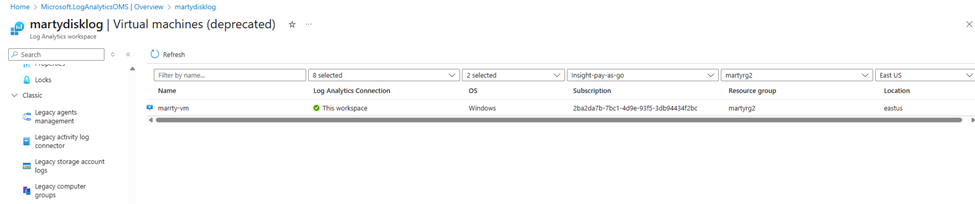
Under Workspace Data Sources > Virtual Machines, find and select your VM
Click Connect
This will install the Azure Monitor Agent if not already present
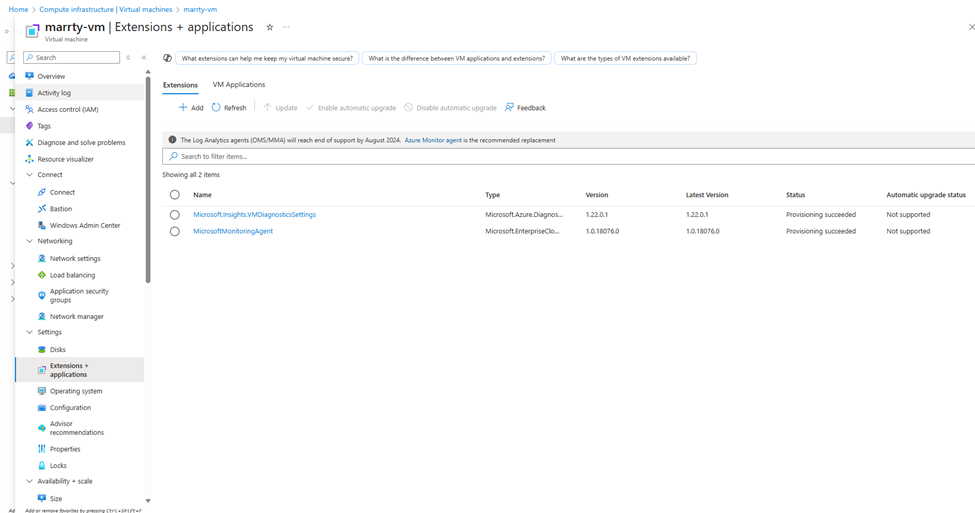
Verify the agent is listed under the VM’s Extensions + applications
4. Configure Performance Counters
In the Log Analytics Workspace, go to Settings > Agent configuration
Under Windows performance counters, click + Add performance counter
Select:
Object: LogicalDisk
Counter: % Free Space
Instance: ( C: or * for all volumes)
Sample rate: 60 seconds (default)
Click Apply
Allow 20–30 minutes for data to start appearing.


5. Run Log Analytics Query to Monitor Disk Usage
Go to Log Analytics Workspace > Logs
Use Check disk space:
This query flags drives with less than 20% free space (i.e., over 80% used).
6. Create the Alert Rule
Go to Azure Monitor > Alerts
Click + Create > Alert rule
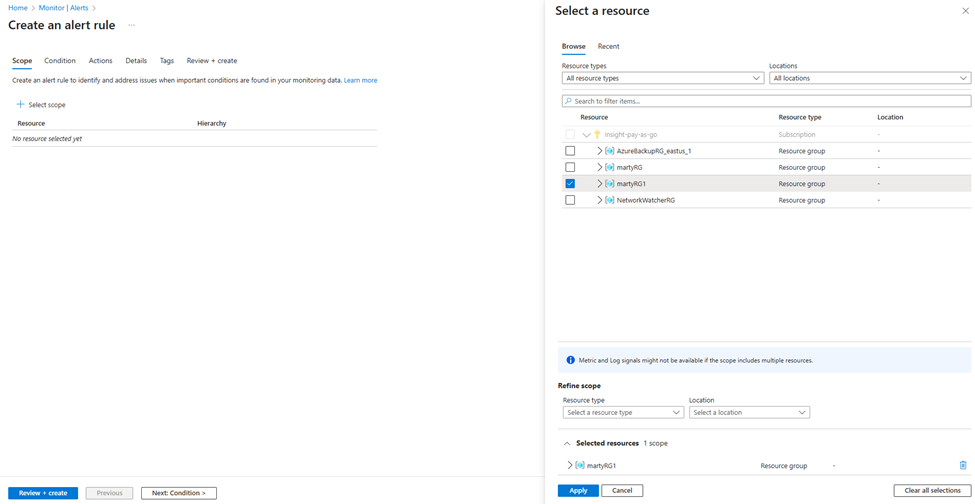
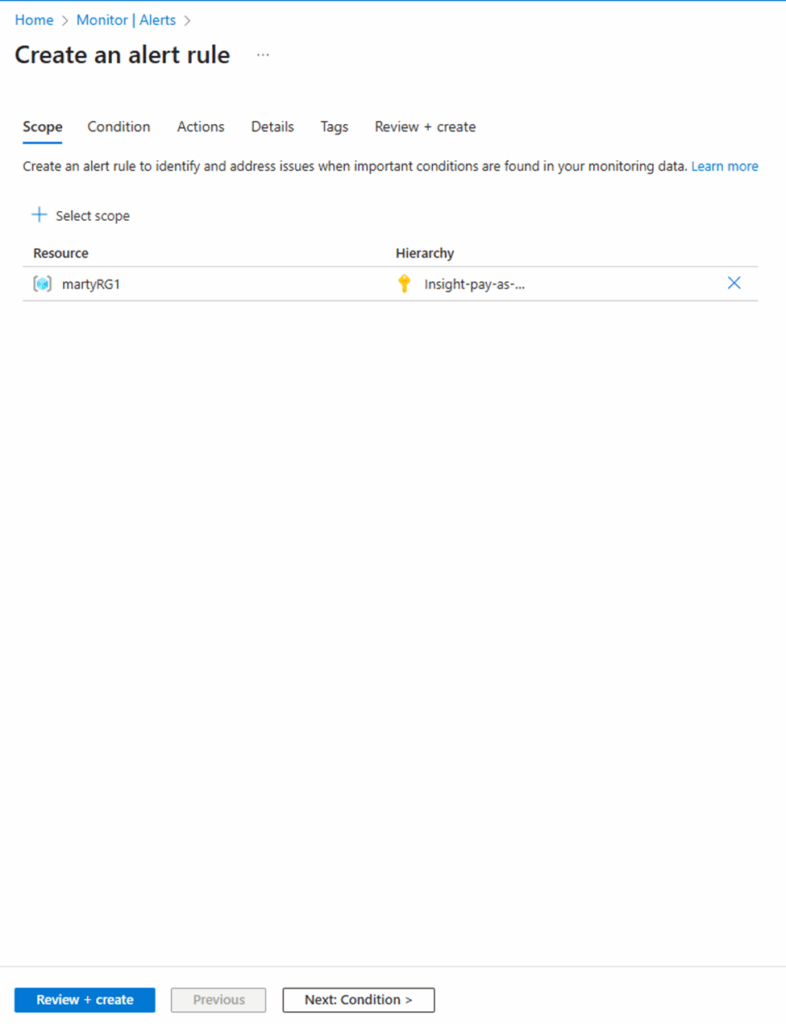
Scope: Choose your Log Analytics Workspace
Condition:
Choose Custom log search
Paste the Kusto query above
Set:
Threshold: 0 (fires if any result is returned)
Frequency: 5 minutes
Evaluation period: 5 minutes
Click Done
7. Create an Action Group for Email Notification
In the Actions section, click + Add action group
Click + Create action group
Provide:
Name: marty-alert-email
Resource Group: same as your VM
Under Notifications, click + Add notification
Notification type: Email
Recipient: marty@marty.com
Save and review

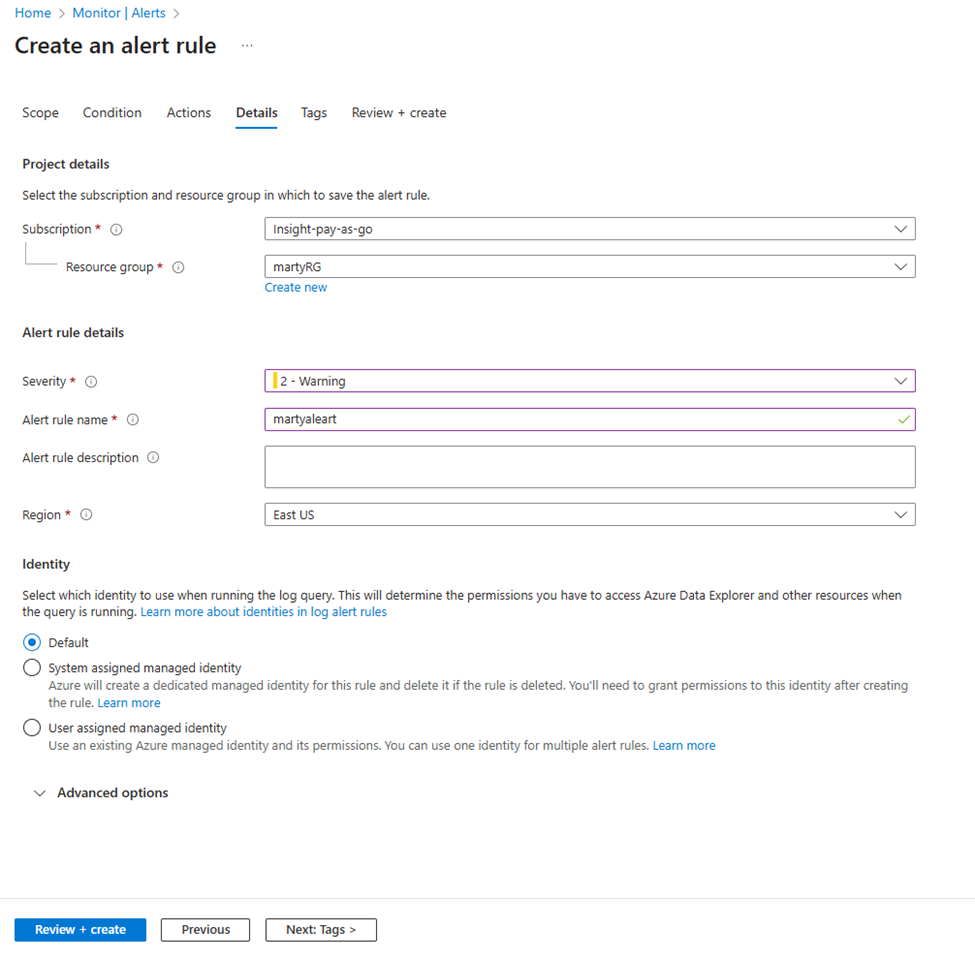
8. Define Alert Details
Alert rule name: DiskSpace80Alert
Description: “Alert when disk usage exceeds 80%”
Severity: 2 – Warning
Enable rule upon creation: Yes
Click Create alert rule
9. Validate the Alert
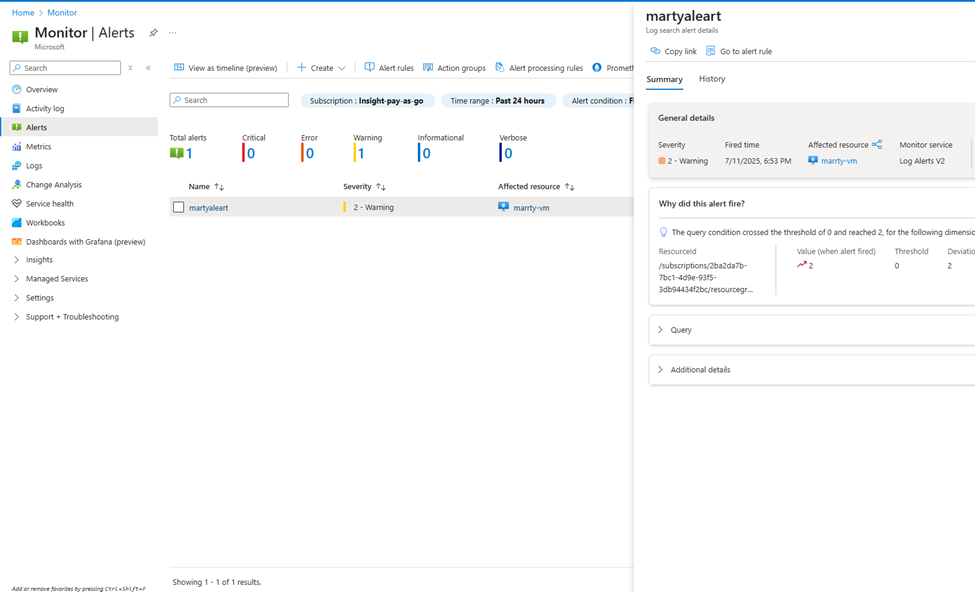
You can simulate disk usage with test files or wait until the threshold is met
Go to Azure Monitor > Alerts > Manage alert rules to verify it is active
Check your email inbox (marty@marty.com) for alert notifications
#Migration #CloudMigration #Azure #M365Migration #EmailMigration