1. Sign In to Azure Portal
Go to https://portal.azure.com
Sign in with an account that has admin-level access.
2. Navigate to the Scope You Want to Assign Roles To
To assign at the subscription level:
- Go to “Subscriptions”
- Select your subscription (Pay-As-You-Go or marty-sub)
- Click “Access control (IAM)”
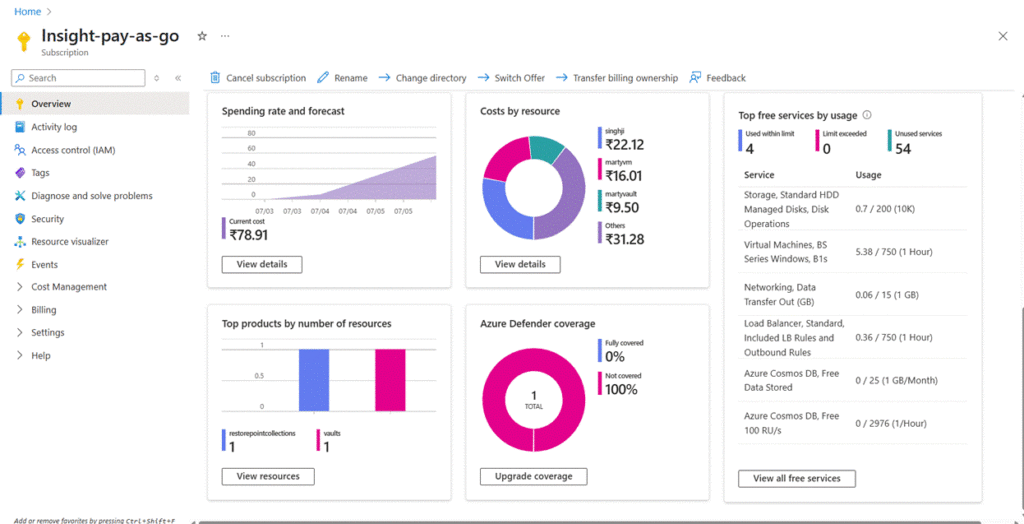
Capture a screenshot of the IAM blade in the selected scope.
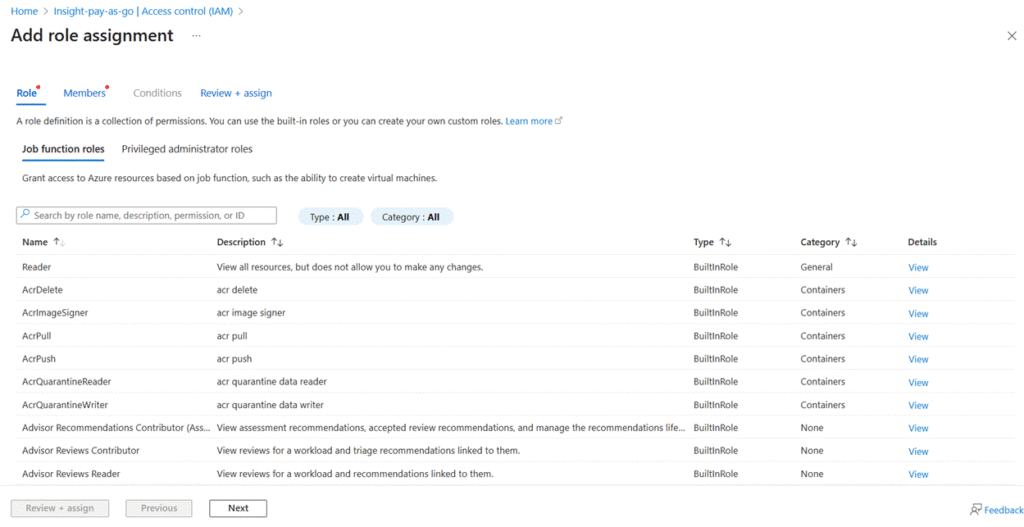
3. Click on ‘+ Add’ → ‘Add role assignment’
- In the Access Control (IAM) page, click + Add
- Choose Add role assignment
4. Select a Role for the User
Choose the appropriate built-in role or custom role. Common roles include:
- Reader – View only
- Contributor – View and modify, but not assign roles
- Owner – Full control, including access management
- Virtual Machine Contributor – Manage VMs, but not networks or storage
5. Assign the Role to a User, Group, or Managed Identity
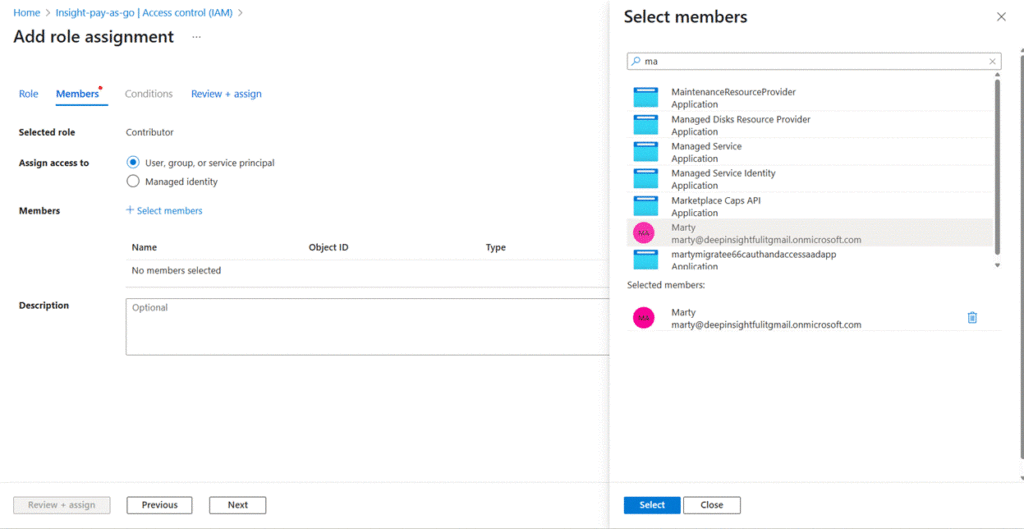
- In the Members step, click + Select members
- Search for and select the user or group
- Click Select, then Review + assign
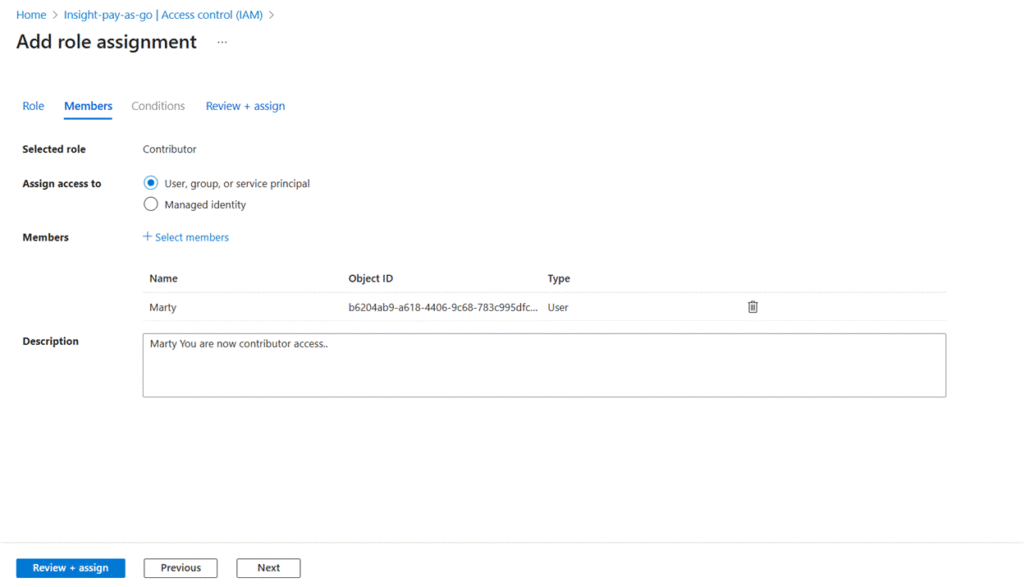
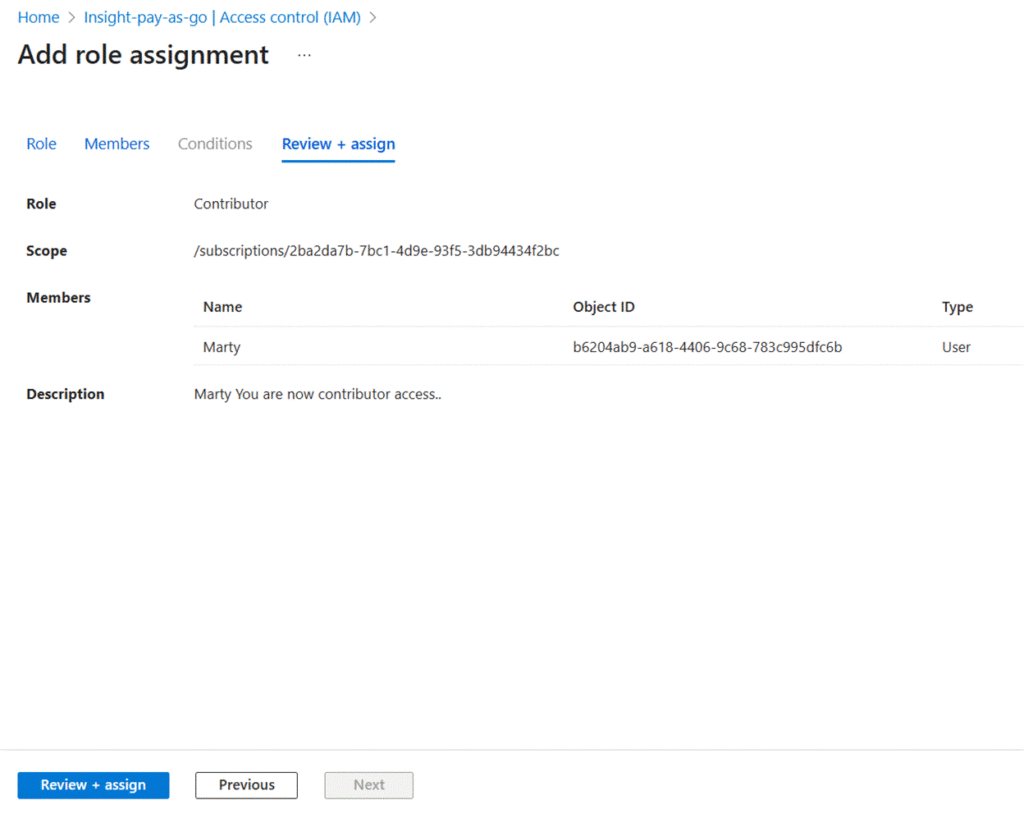
6. Confirm Role Assignment
- Go back to “Access Control (IAM)” → “Role assignments”
- You should see the user and role listed
- Click on the assignment to review the scope and permissions
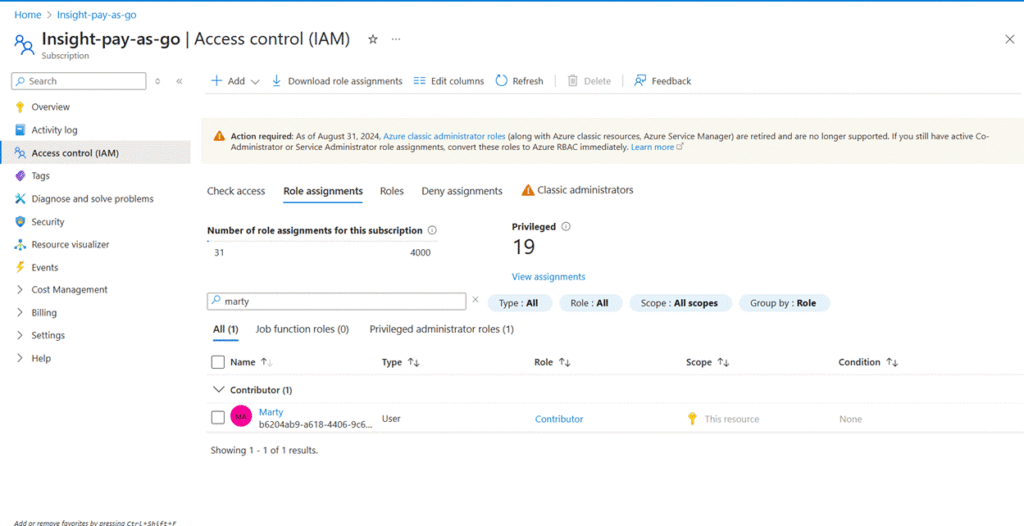
Example Role Assignments
| User | Scope | Role |
| marty.admin | Subscription | Owner |
| marty.readonly | Resource Group: RG-WebApps | Reader |
| marty.vmops | VM Resource: martyVM1 | Virtual Machine Contributor |
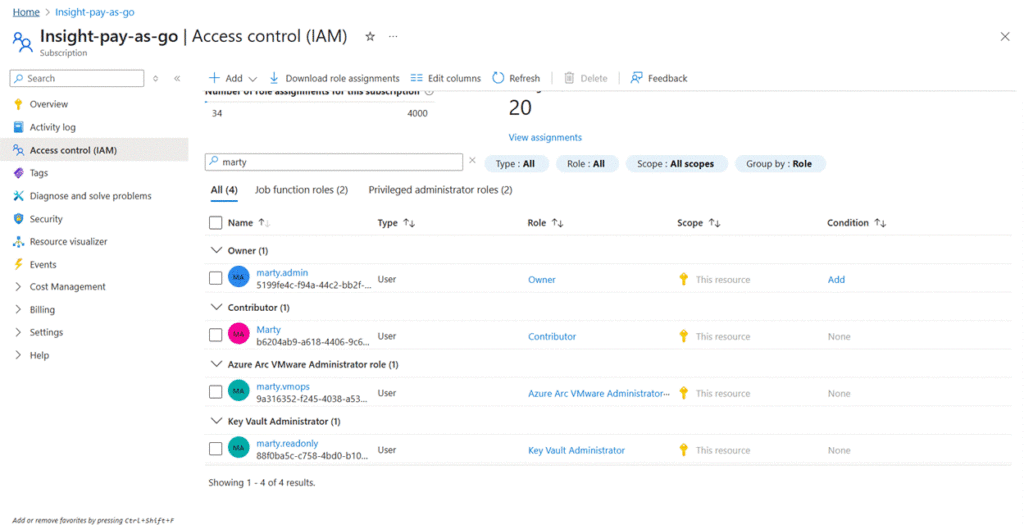
Optional Assign Microsoft Entra ID Roles
To assign directory-wide roles like Global Administrator or User Administrator:
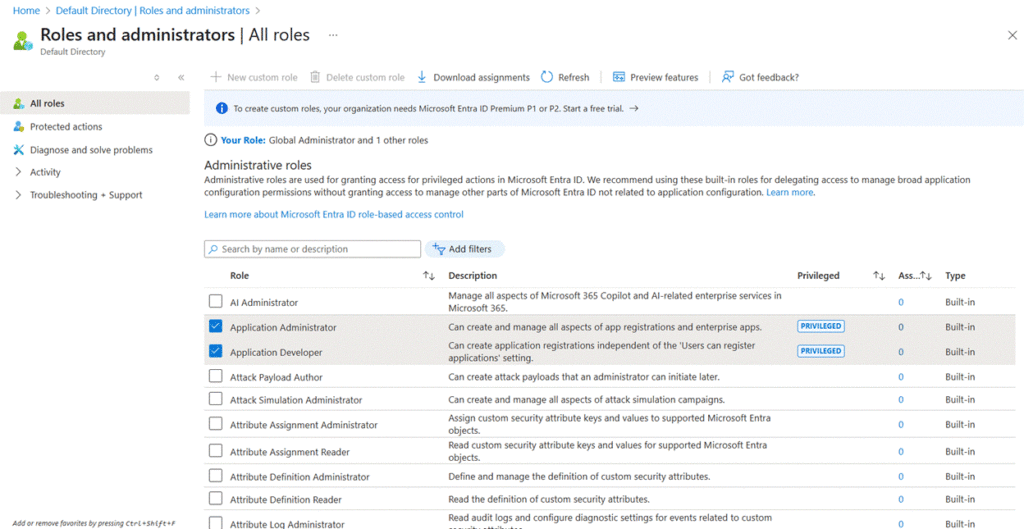
- Navigate to Microsoft Entra ID → Roles and administrators
- Select a role, then click + Add assignment
- Choose the user to assign the role
#Migration #CloudMigration #Azure #M365Migration #EmailMigration